 Documentation
Matrix / Element communication platform
New Matrix User Platform for the LLM topics
The topic of LLMs is generating significant interest among MetaCentrum users, with an increasing number of questions, discussions, and experiences worth sharing. We have therefore launched a dedicated communication channel on Matrix, a platform similar to Discord that runs locally within the e-INFRA CZ infrastructure.
Two channels are currently available:
- LLM-General – for sharing experiences, know-how, tips, and best practices among users,
- LLM – Status – for information about outages and the current status of the services.
Our goal is to gradually move the community discussion around LLMs to this space, where users can share their experiences, knowledge, and best practices, and help each other.
For now, we are testing how this type of communication platform works in the MetaCentrum environment. If it proves useful, we may expand it to cover other topics in the future.
Matrix does not replace email or RT. Routine questions and requests directed to MetaCentrum/CERIT-SC will continue to be handled through the standard RT process. Matrix is primarily intended for community communication and sharing knowledge and experiences among users.
Accessing Matrix
Prerequisites
To use Matrix, you must have an active MetaCentrum account.
How to Get Access
The CERIT-SC AI services are integrated with the national research infrastructure MetaCentrum. If you don’t have an account yet, apply through the:
👉 MetaCentrum registration form
Once your MetaCentrum account is active, access the platform directly
👉 https://element.cloud.e-infra.cz/
💡 Recommended Setup Order: We strongly recommend creating your account, completing the initial setup, and generating your Recovery Key using a desktop web browser first. Once your account is configured, you can set up and link the mobile app to your active session.
💡 Important: The official Matrix account service is not supported with our community open-source Matrix installation. Please use the e-INFRA CZ Matrix service described in this guide and authenticate using your MetaCentrum account via eduID.cz.
Logging In
Open your web browser and navigate to
👉 https://element.cloud.e-infra.cz/
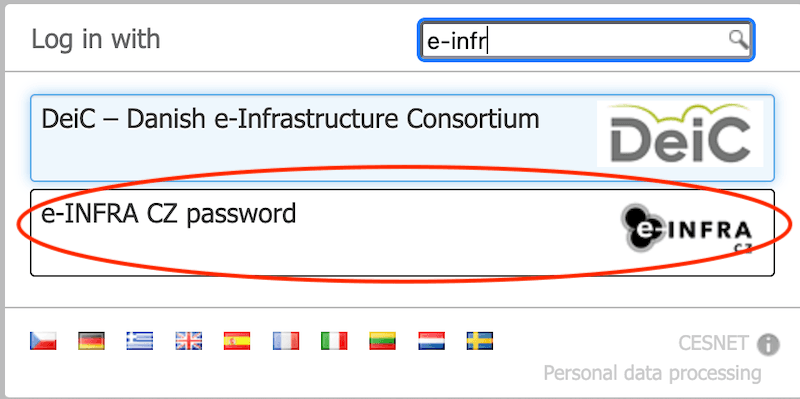
Select your preferred authentication method:
-
Option A – via Home Organization:
- Select your home institution.
- Log in using your institutional credentials (eduID.cz).
-
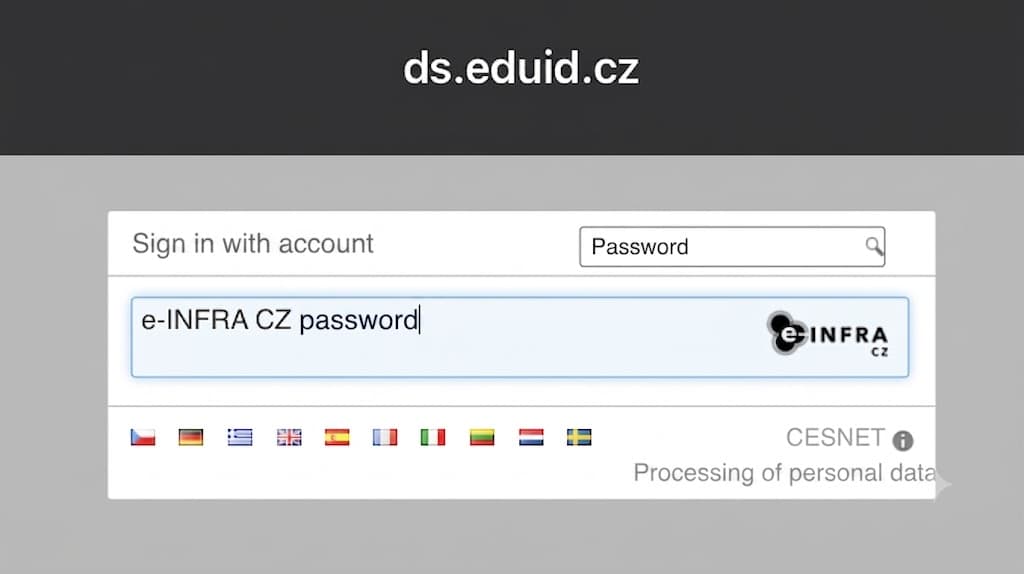
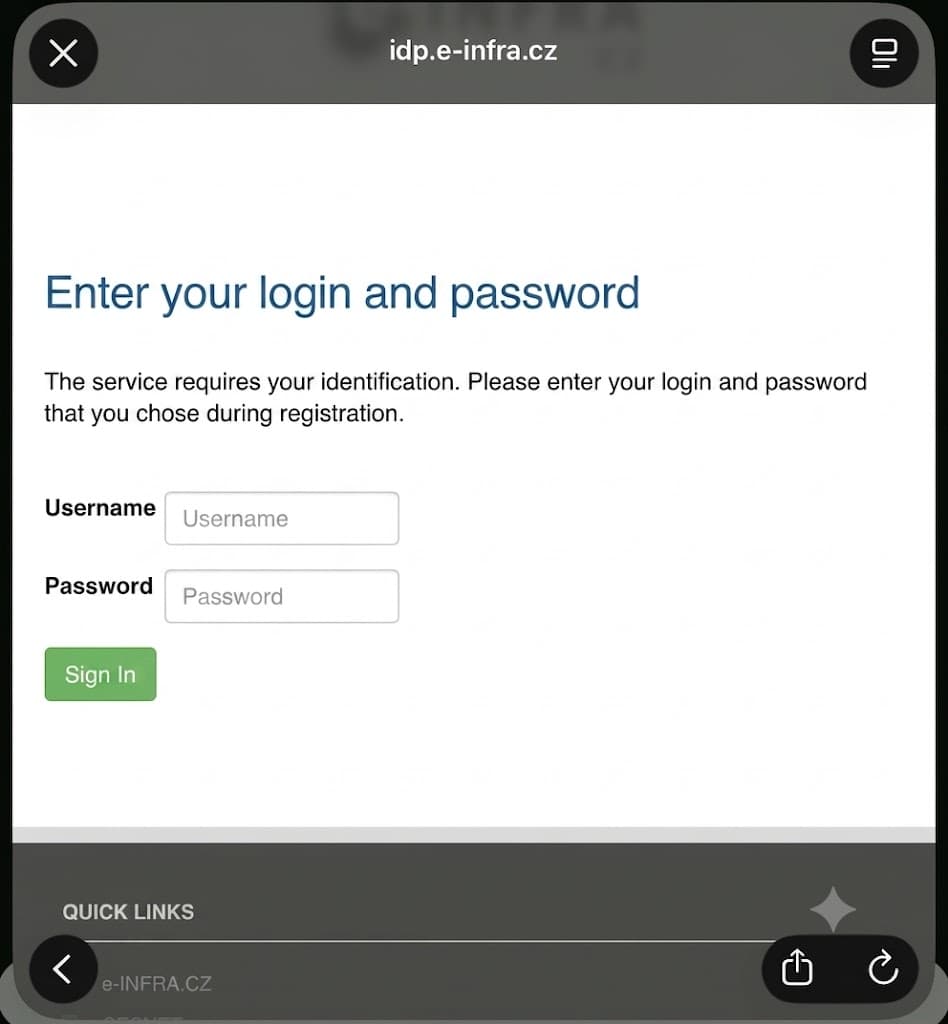
Option B – via e-INFRA CZ Password:
- Select
e-INFRA CZ password. - Enter your MetaCentrum username and password.
- Select
Import Your Account
After authenticating, Matrix may prompt you to import settings or restore an existing session.
- First-time users: Proceed with the standard setup.
- Existing users: Follow the on-screen instructions to import your encrypted data from an active session or backup key.
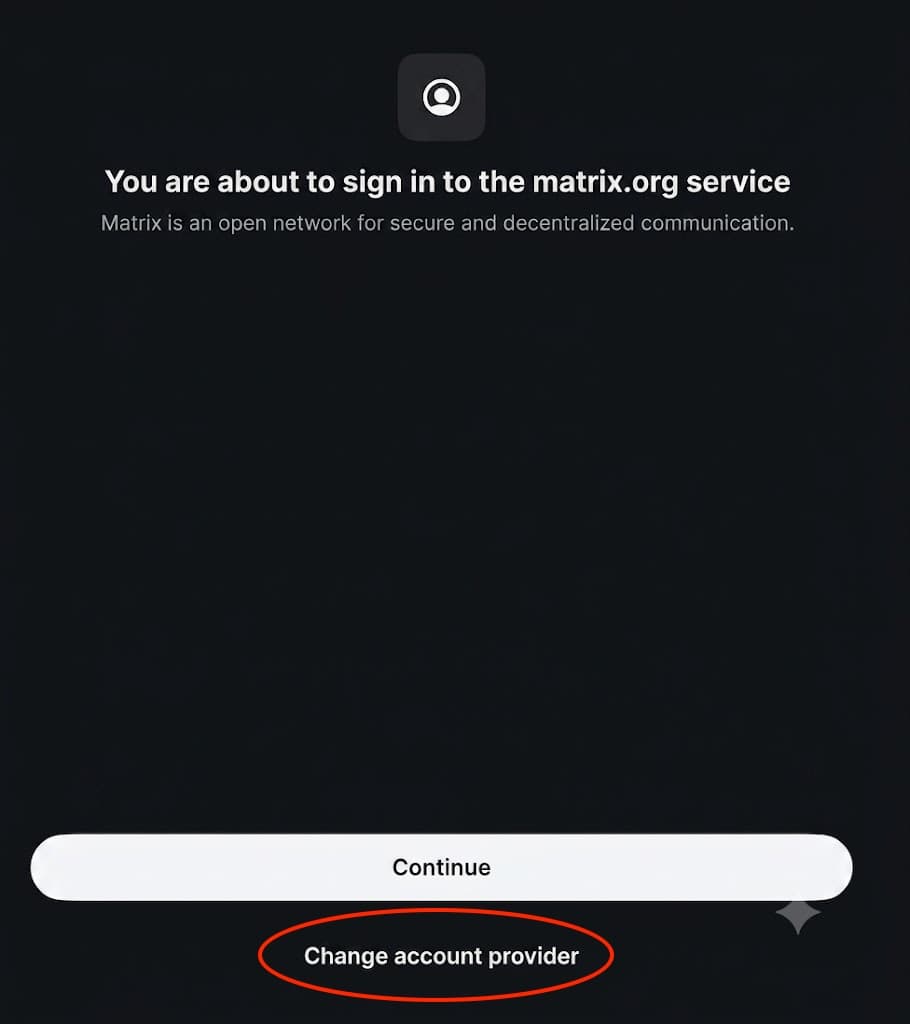
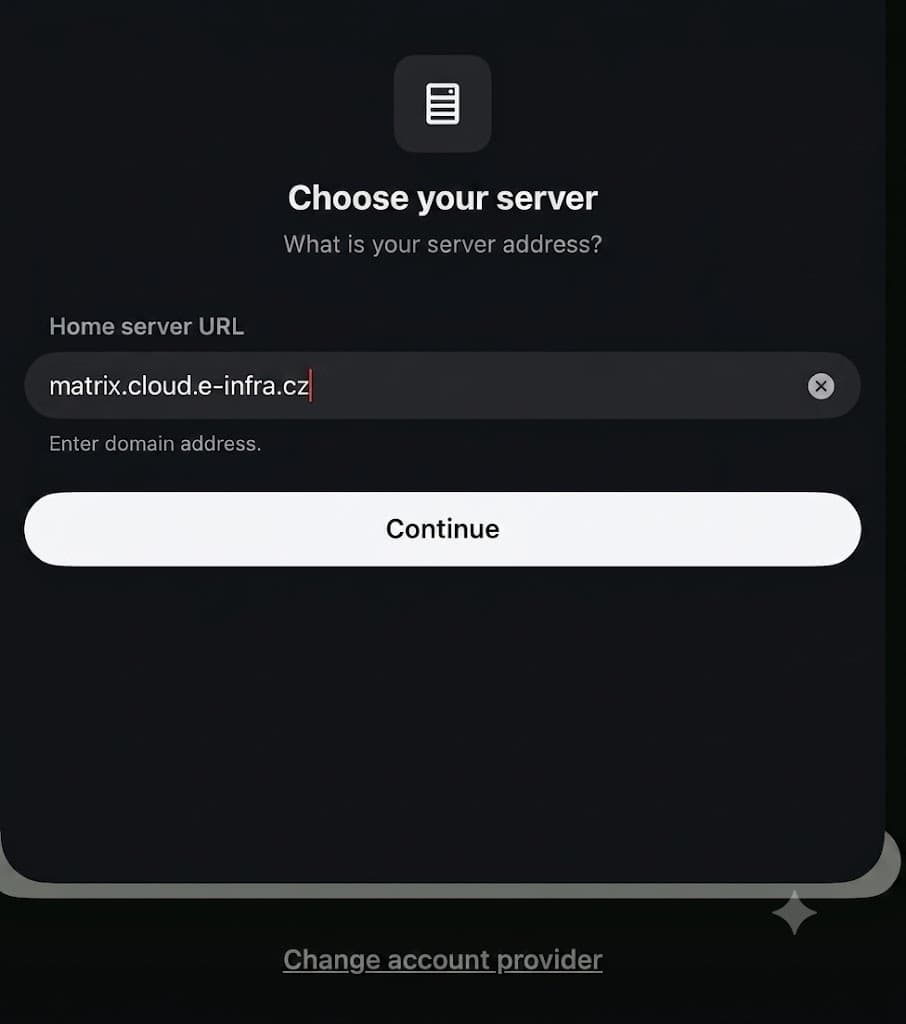
- Change server to:
matrix.cloud.e-infra.cz
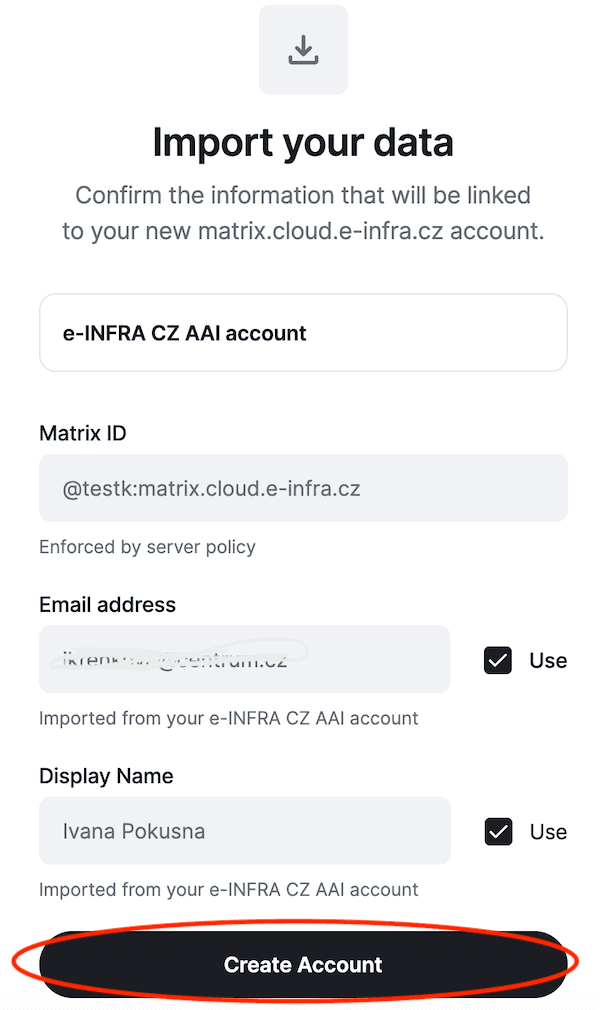
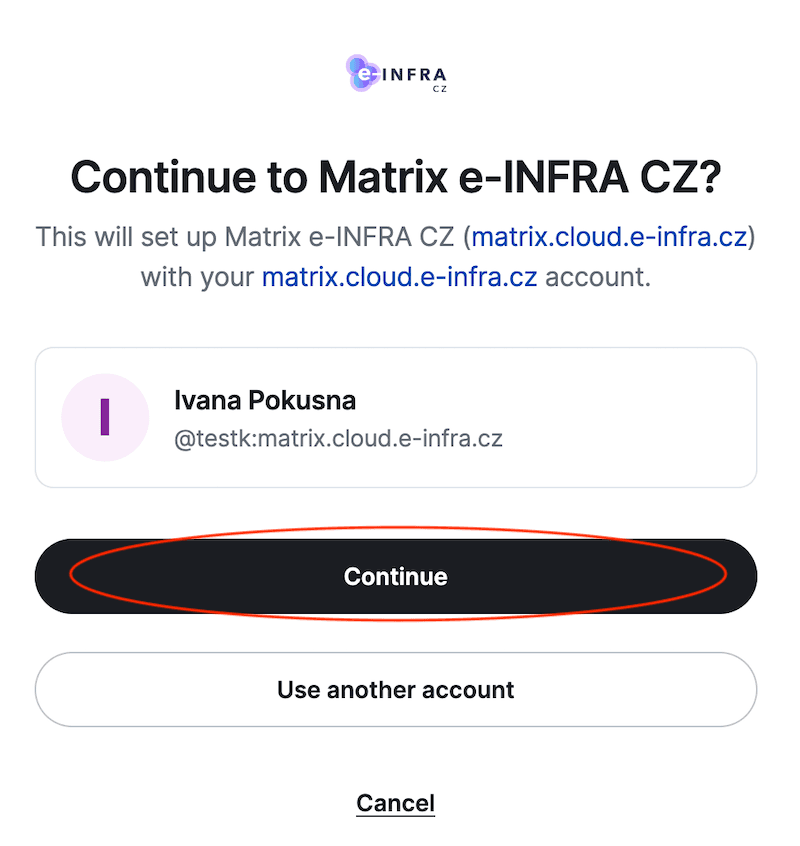
Welcome Screen & Initial Setup
When signing in for the first time, you will see the welcome screen and be guided through two initial setup tasks before accessing your messages:
- Encryption setup
- Notification settings
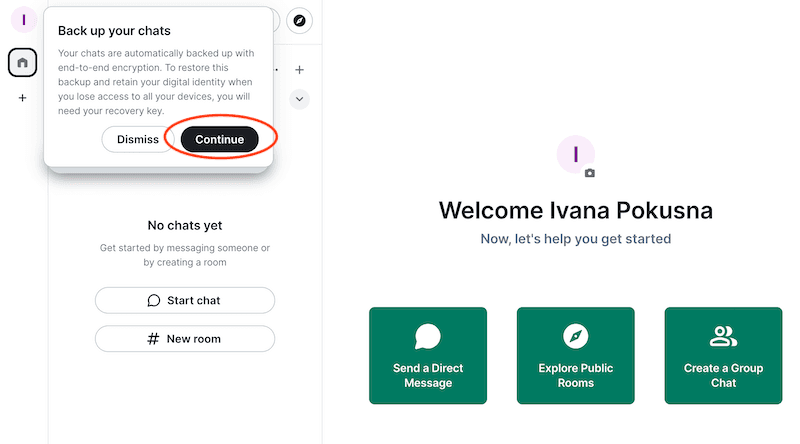
Setting Up Encryption
Matrix uses End-to-End Encryption (E2EE) to secure your messages.
- Only conversation participants can read messages.
- Server administrators cannot inspect your encrypted communication.
- Your chats remain completely private.
To start configuring key backup, click Continue.
Get Your Recovery Key
Matrix will generate a unique Recovery Key.
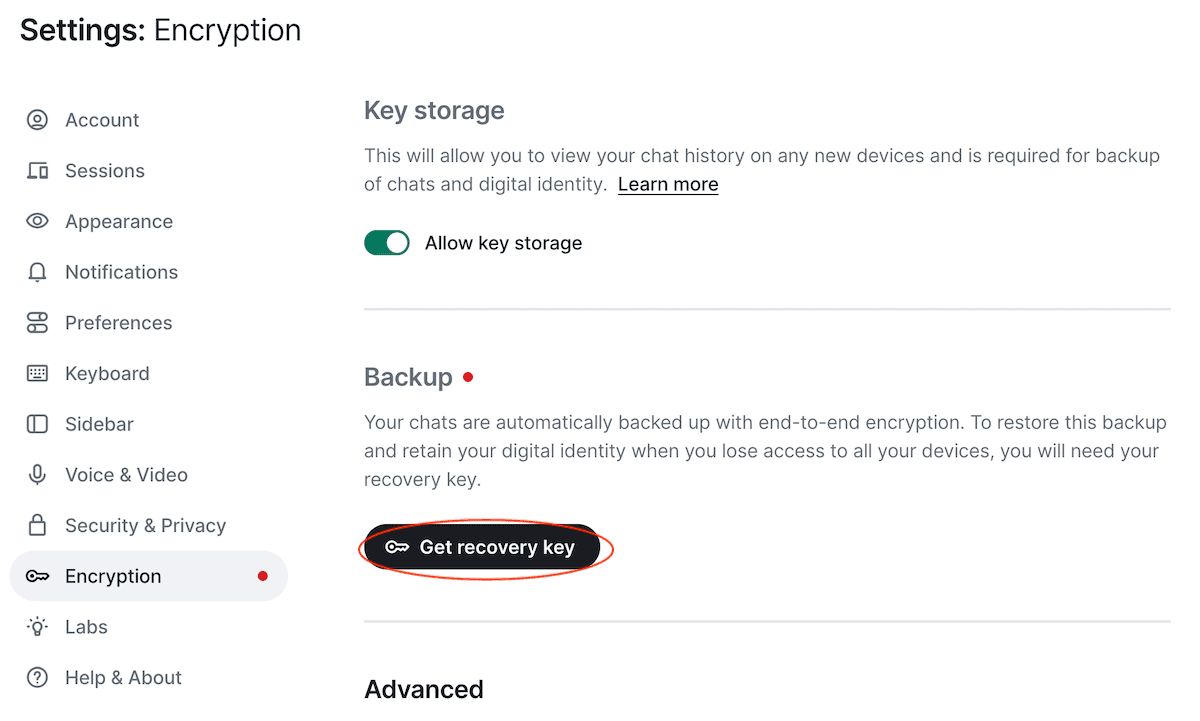
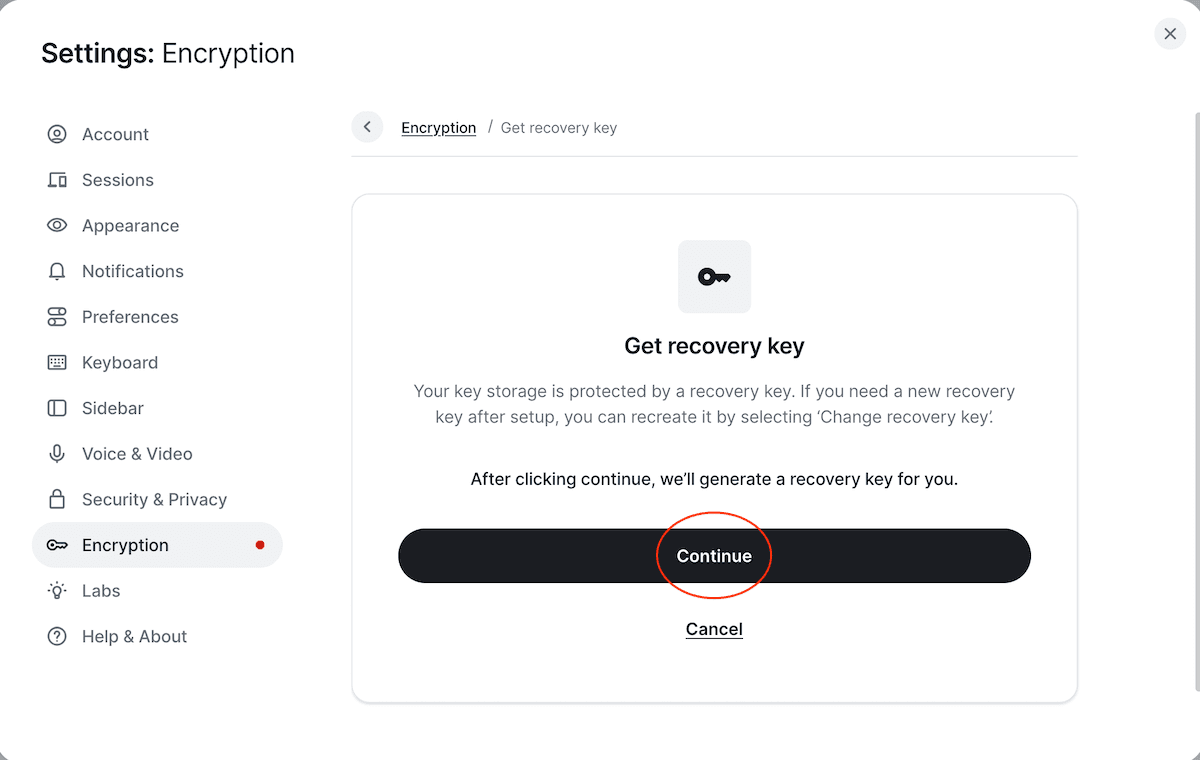
This key is essential to:
- Restore encrypted message history.
- Verify new devices.
- Recover access if you log out on all sessions.
Important: The Recovery Key is displayed only once.
Save Your Recovery Key
Store your key in a safe, persistent location. Recommended options:
- A secure password manager
- An encrypted file store
- A printed physical copy stored securely
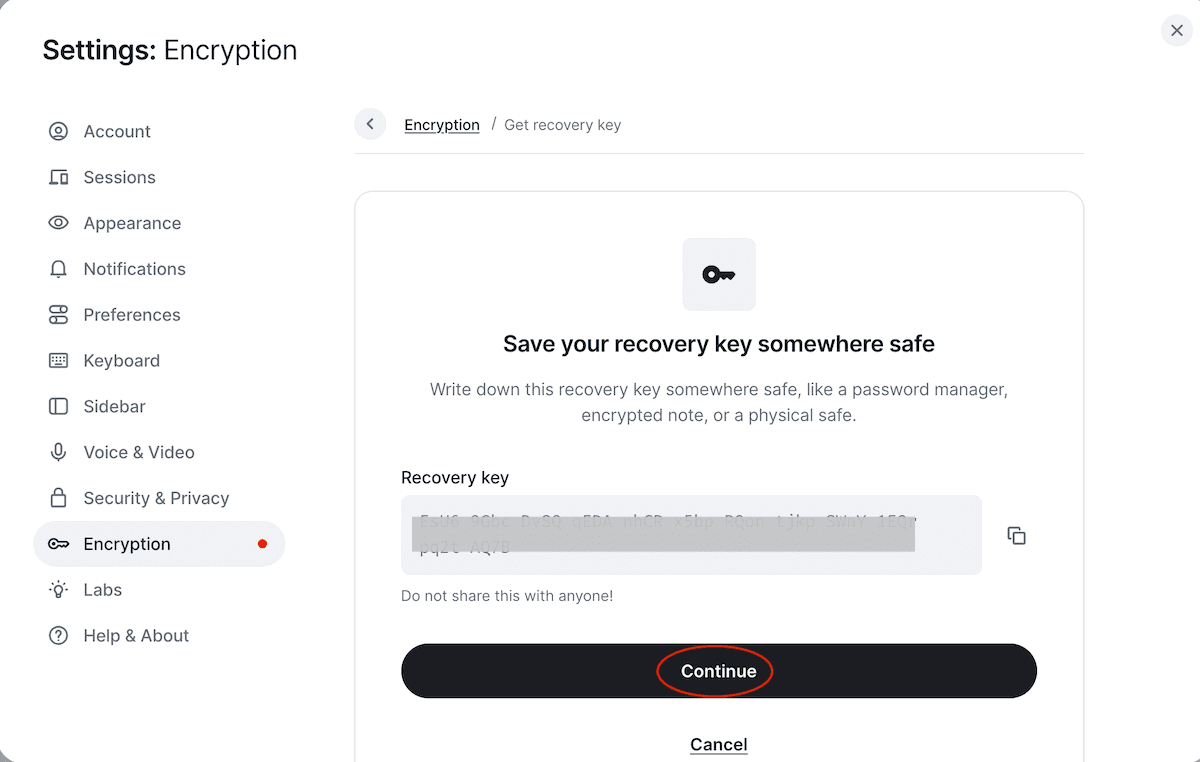
If you lose your Recovery Key and have no other verified active devices, you may permanently lose access to your encrypted message history.
Verify via Recovery Key
When signing in on a new device, Matrix will ask for this key to unlock your historical chats.
- Enter or paste your Recovery Key.
- Click
Finish set up.
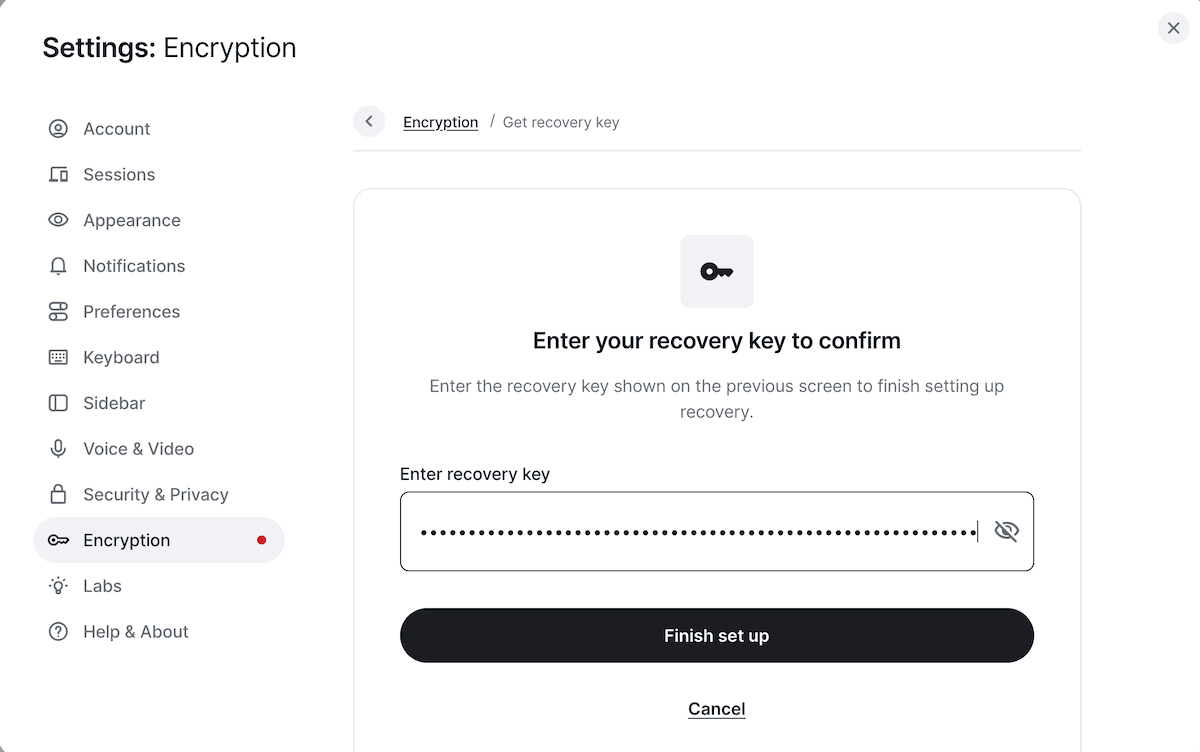
Once entered, your encrypted conversations will be decrypted and available on the new device.
Notifications Setup
Element will request permission to send browser notifications.
Enable notifications to receive real-time alerts for:
- Direct messages
@mentions- Room invitations
- New activity in active rooms
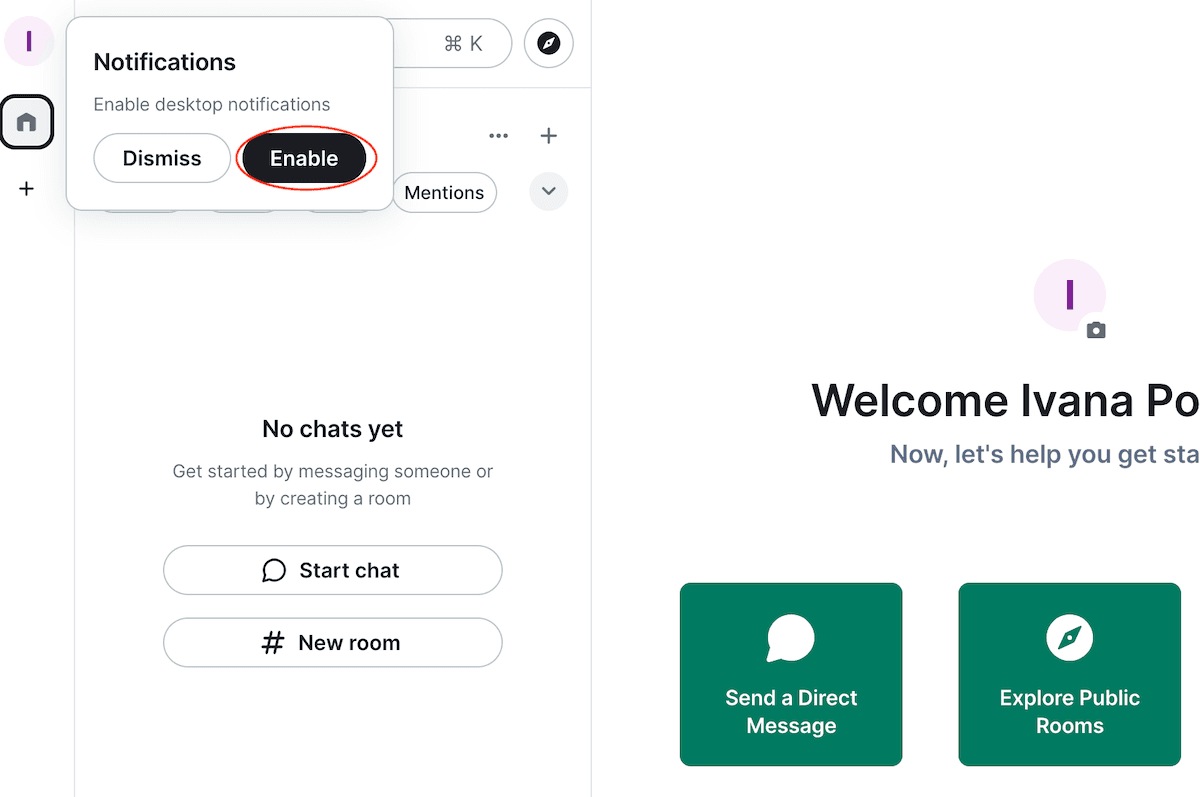
You can fine-tune notification preferences anytime in your account settings.
Main Interface (Home Page)
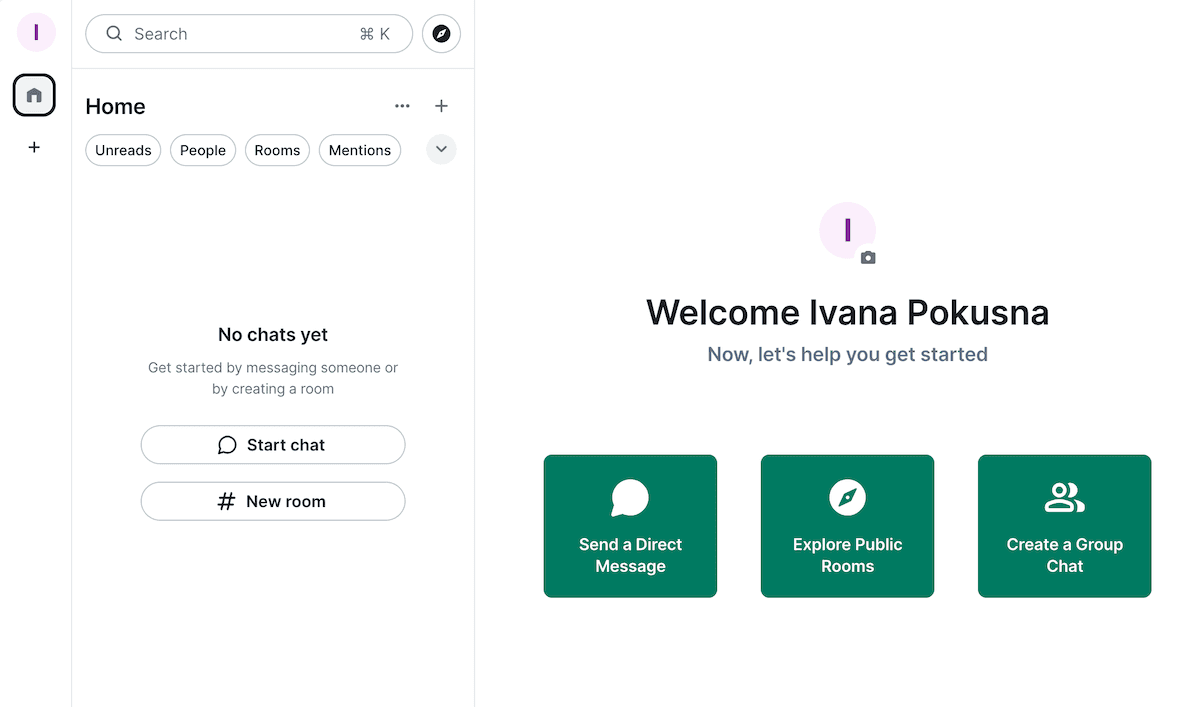
Once setup is complete, you will land on the primary Matrix workspace.
The main interface includes:
- Rooms – Group chat rooms you have joined.
- People – One-on-one direct messages.
- Spaces – Collections or folders organizing related rooms.
- Search – Global search for people, rooms, and message history.
- Settings – Personal preferences, security, and profile configuration.
Finding & Messaging People
Search for People
- Click the Search field in the top bar or sidebar.
- Enter the person’s name or Matrix ID.
- Select the user from the results list.
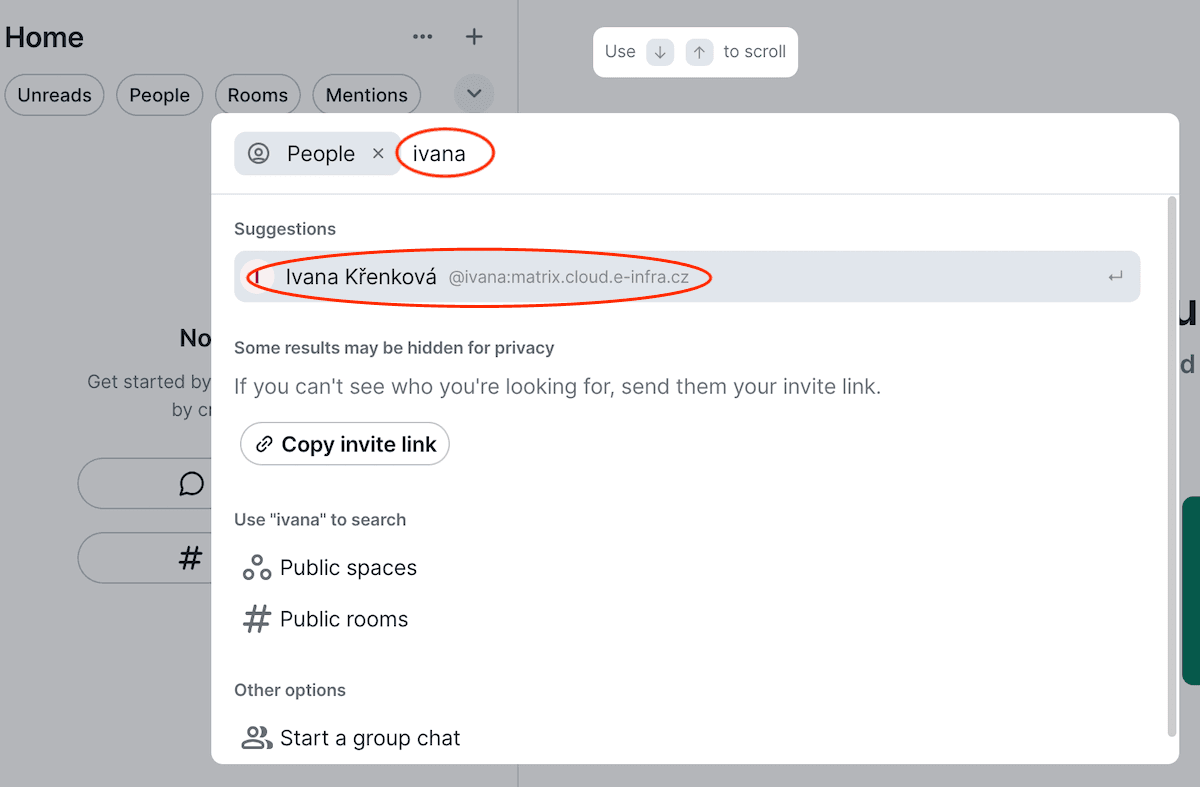
Only users who have already registered and logged into the e-INFRA CZ Matrix ecosystem will appear in search results.
Start a Conversation
- Search for the user and select their profile.
- Click Message or Start Chat.
- Send your initial message.
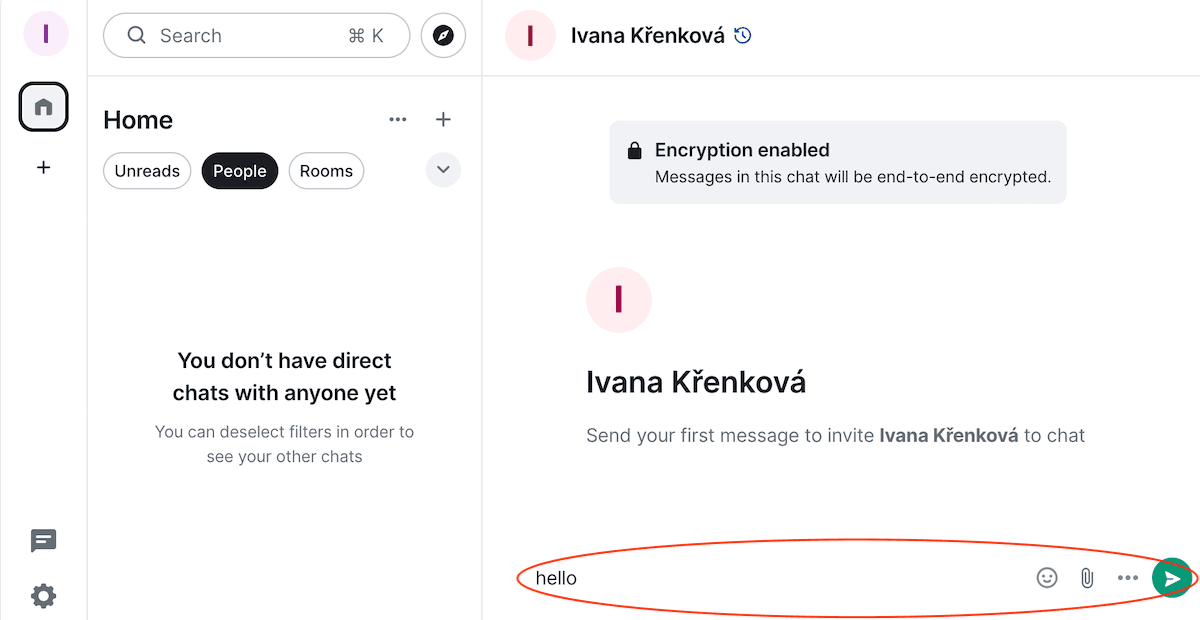
Once started, you can share messages, files, code snippets, links, and images securely.
Joining Public Rooms
Matrix hosts central public channels. Two main rooms are available for discussion regarding the infrastructure’s LLM services:
- LLM - Status (System updates, releases, and outages)
- LLM - General (Open discussion on LLM topics and usage)
How to Find and Join Public Rooms:
- Click Explore Rooms (Room Directory).
- Enter a keyword (e.g.,
LLM) into the search bar. - Browse the room directory list.
- Click View to preview a room.
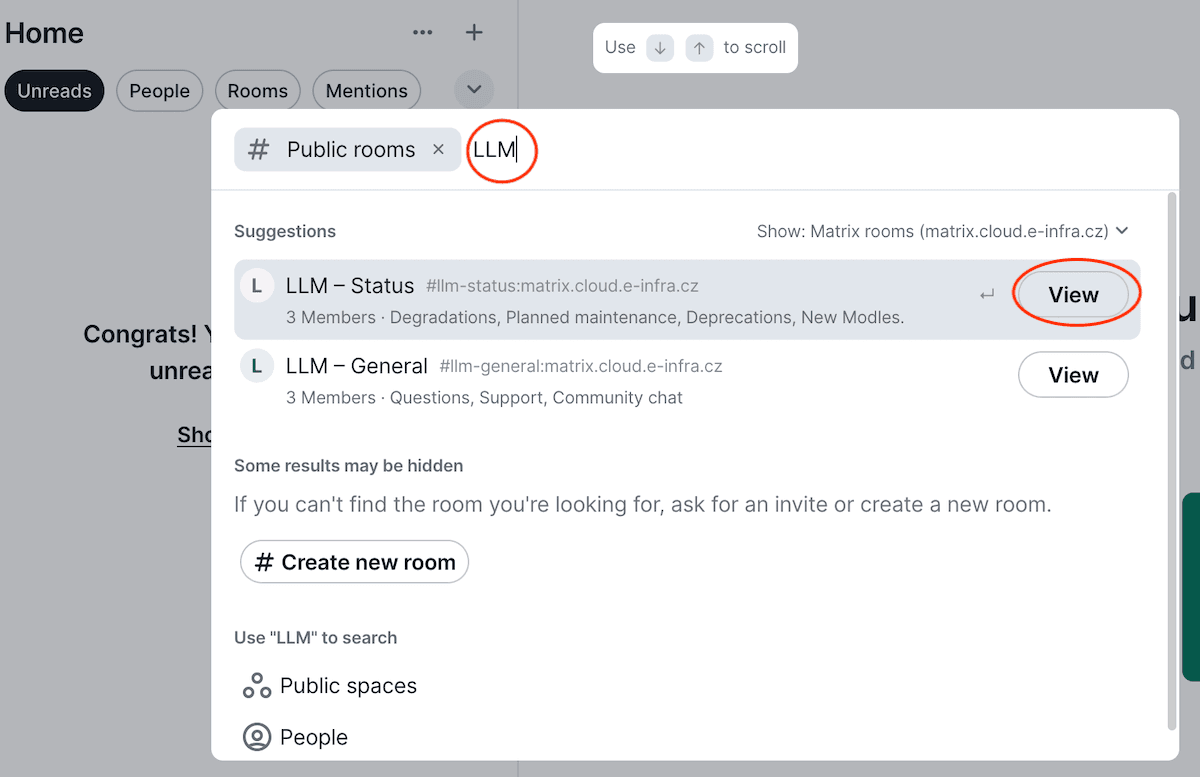
- Click Join the discussion to become a member.
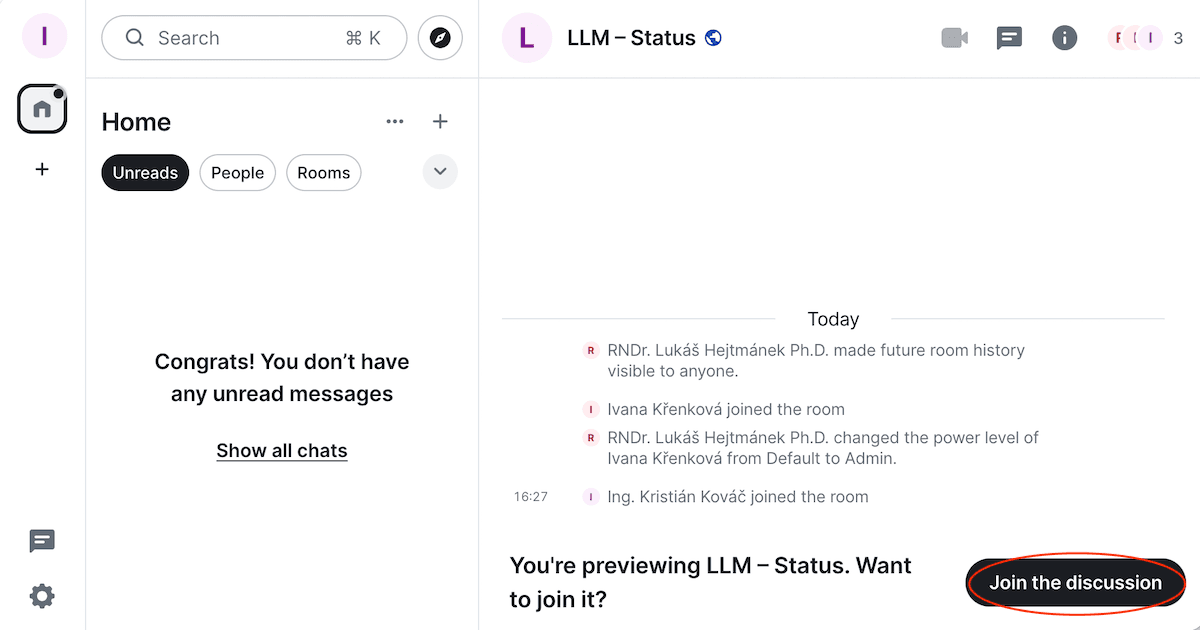
Joined rooms will now remain saved on your sidebar home interface for quick access.
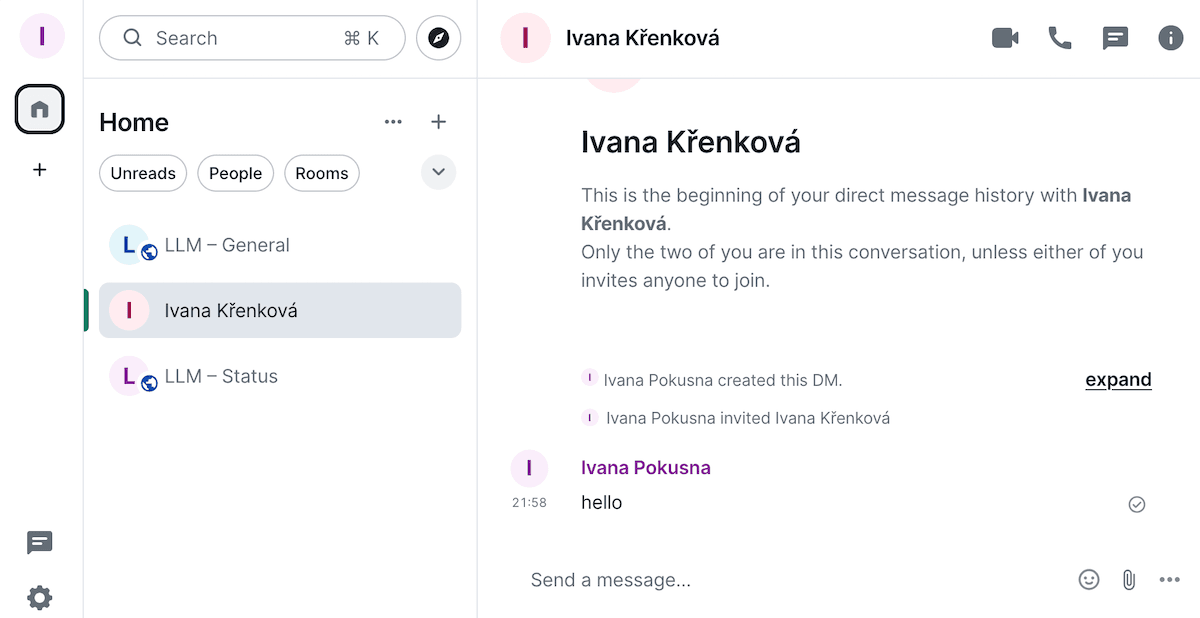
Private or moderated rooms may require administrator approval before access is granted.
Inviting Members to a Room
If you have permission to invite members to a specific room:
- Open the designated room.
- Open the Room Information panel (top right).
- Select Members.
- Click Invite.
- Search for the user (must be a registered Matrix user).
- Send the invitation.
The invited user will receive an in-app notification to accept or decline the room invitation.
E-mail invitations are not supported. Inviting external users via email requires third-party plugins that transmit internal data outside our infrastructure, which is disabled to comply with e-INFRA CZ security policies. Users must first register their account before they can be invited or found in search.
Mobile Setup: Element X App
Access your e-INFRA CZ Matrix account on mobile (iOS/Android) using Element X, the modern and lightweight Matrix client.
Install the App
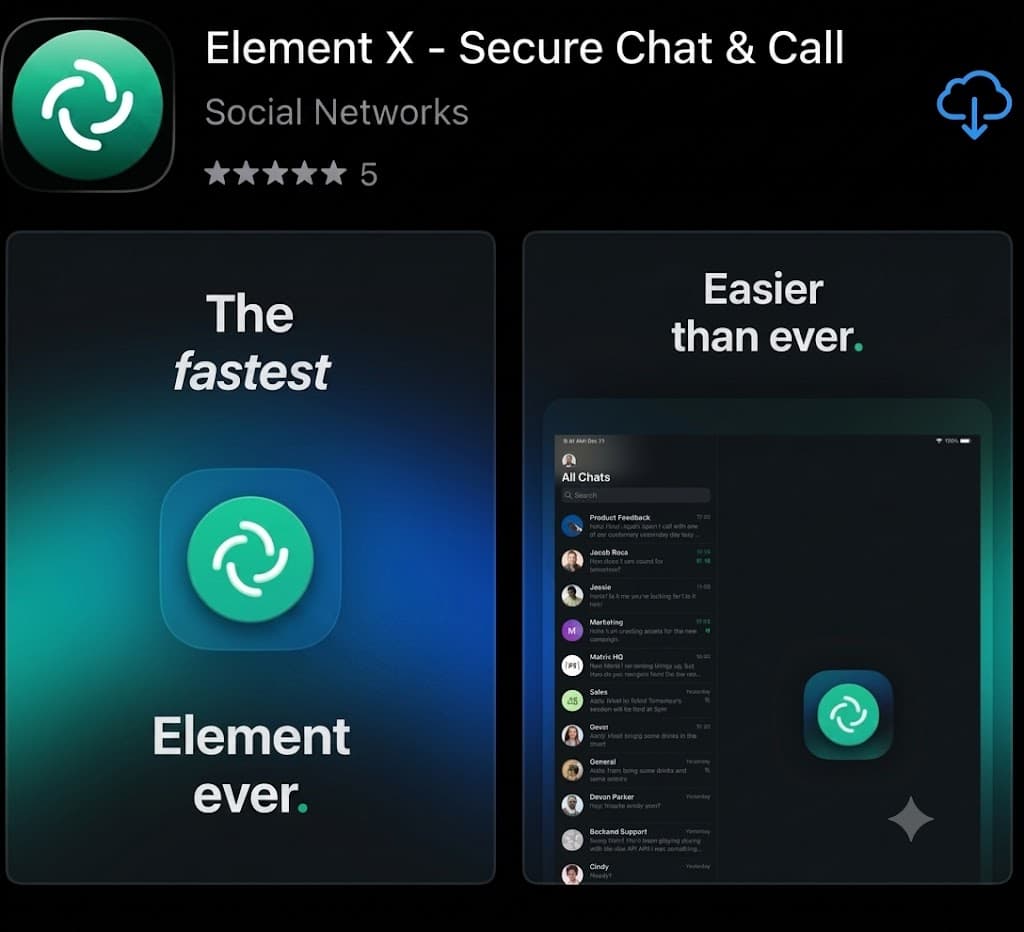
Download Element X from your official store:
- iOS: App Store — Search for
Element X - Android: Google Play — Search for
Element X
Important: Do not use Element Classic, it will not connect to our Matrix server. Please install the Element X app instead.
Change the Server (Important)
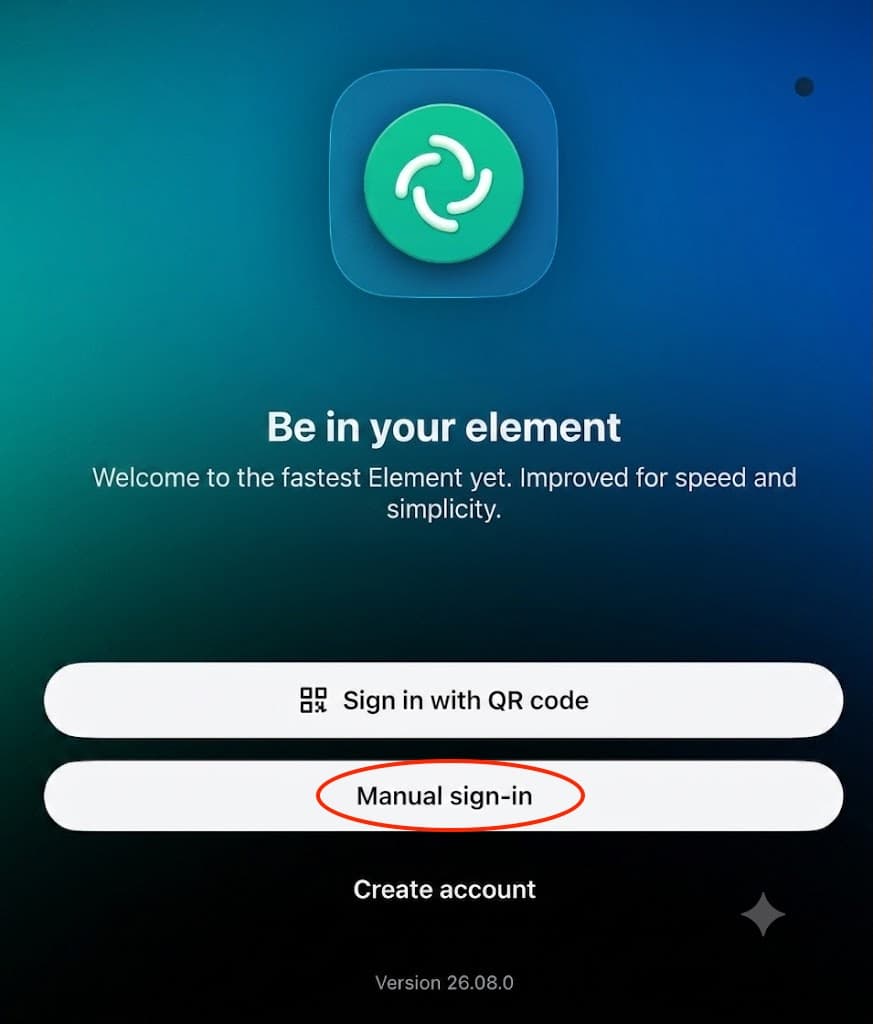
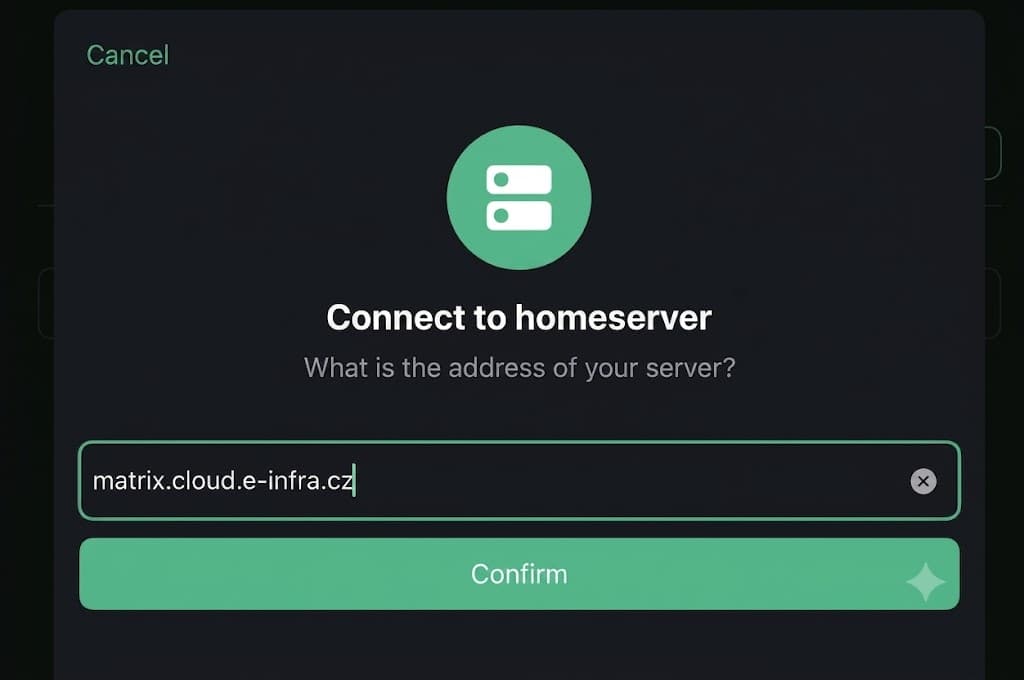
By default, Element X connects to public matrix.org. Point the client to the local e-INFRA CZ server:
- On the welcome screen, tap Change Server (or ** Choose Server**).
- Enter the custom server URL:
matrix.cloud.e-infra.cz - Tap Continue or Confirm.
Login
Authenticate through your mobile browser using your eduID.cz or e-INFRA CZ password credentials.
Verify Your Mobile Device
To read encrypted history on your phone, verify your session using one of the following methods:
-
Option A (Use another device): Compare the sequence of emojis displayed on both your computer screen and mobile device. If they match, tap Confirm on both devices.
-
Option B (Recovery Key): If you don’t have an active web session open on another device, select Use Recovery Key and enter your saved key.
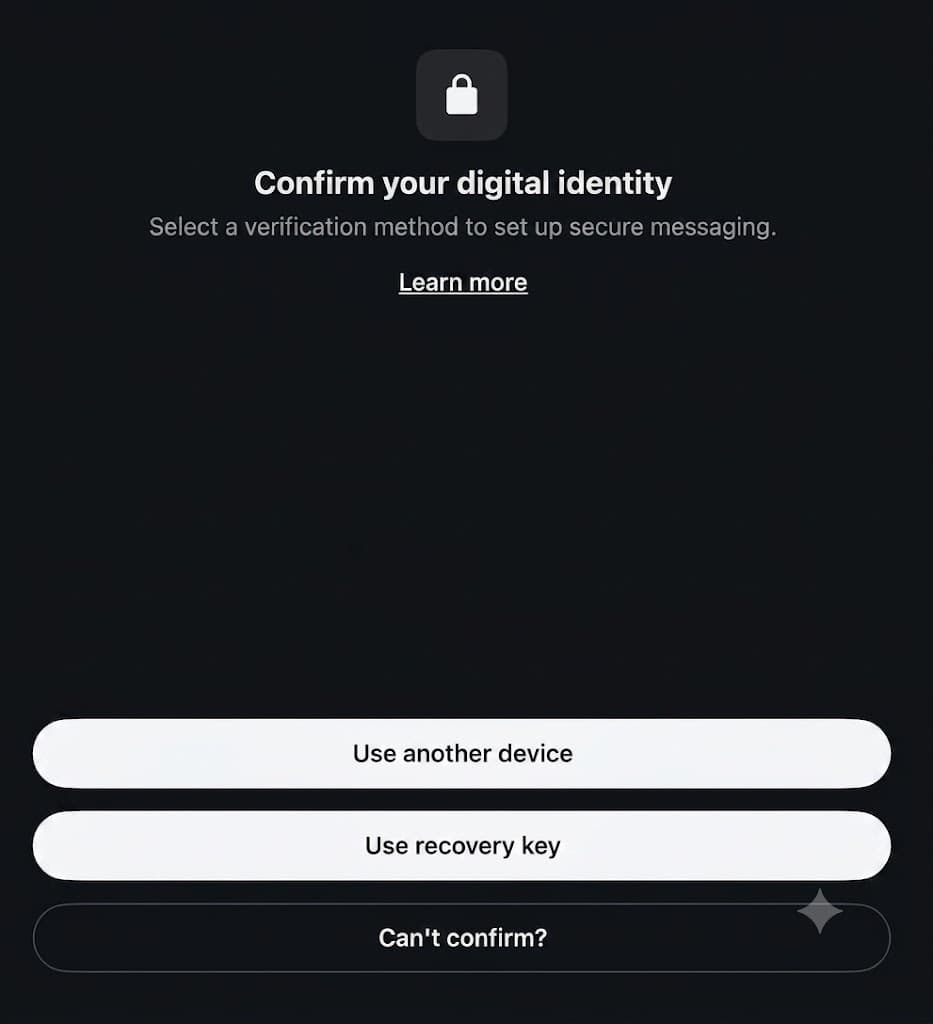
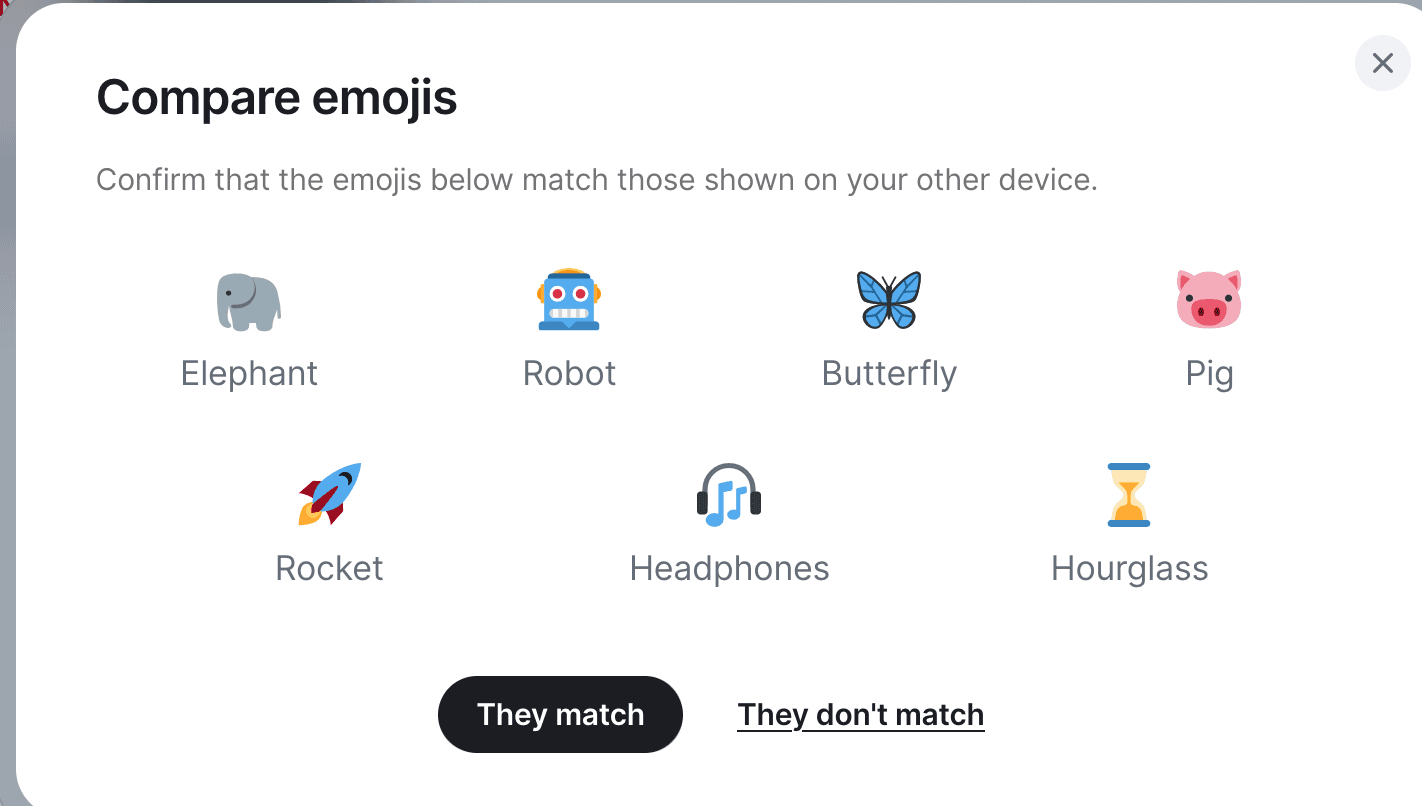
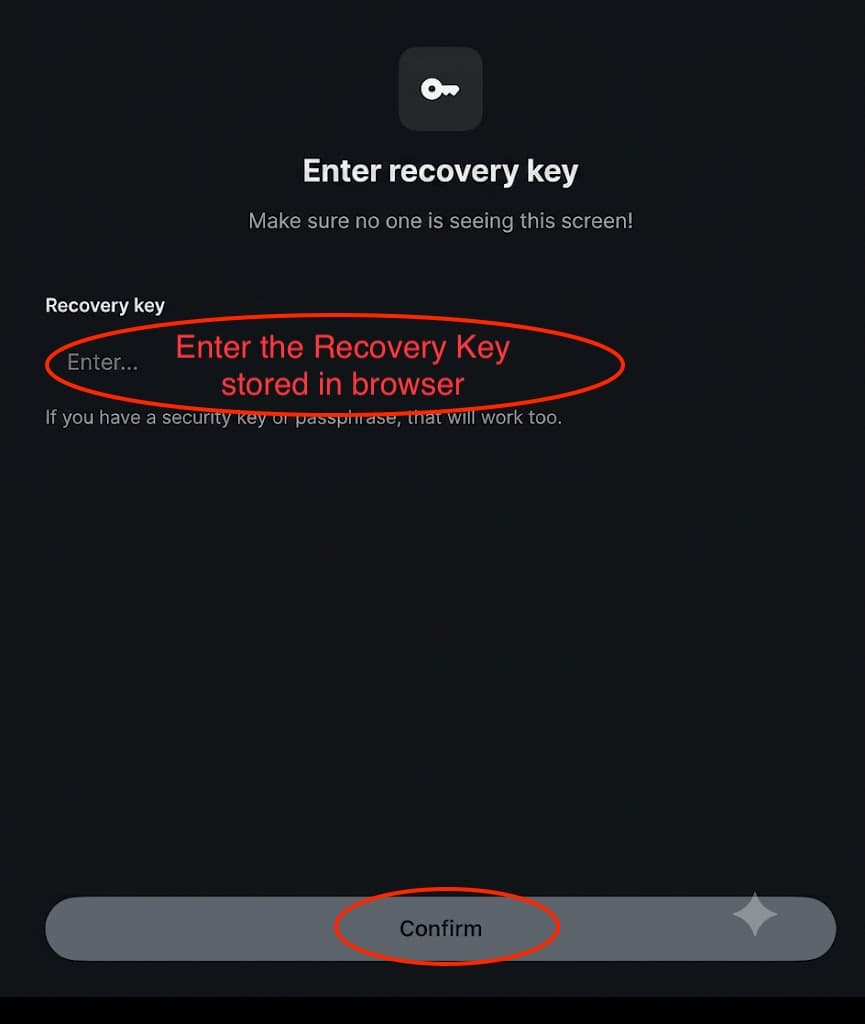
Device Verification Note: QR code verification is not supported on our infrastructure. Please use Emoji Match or your Recovery Key to verify new devices.
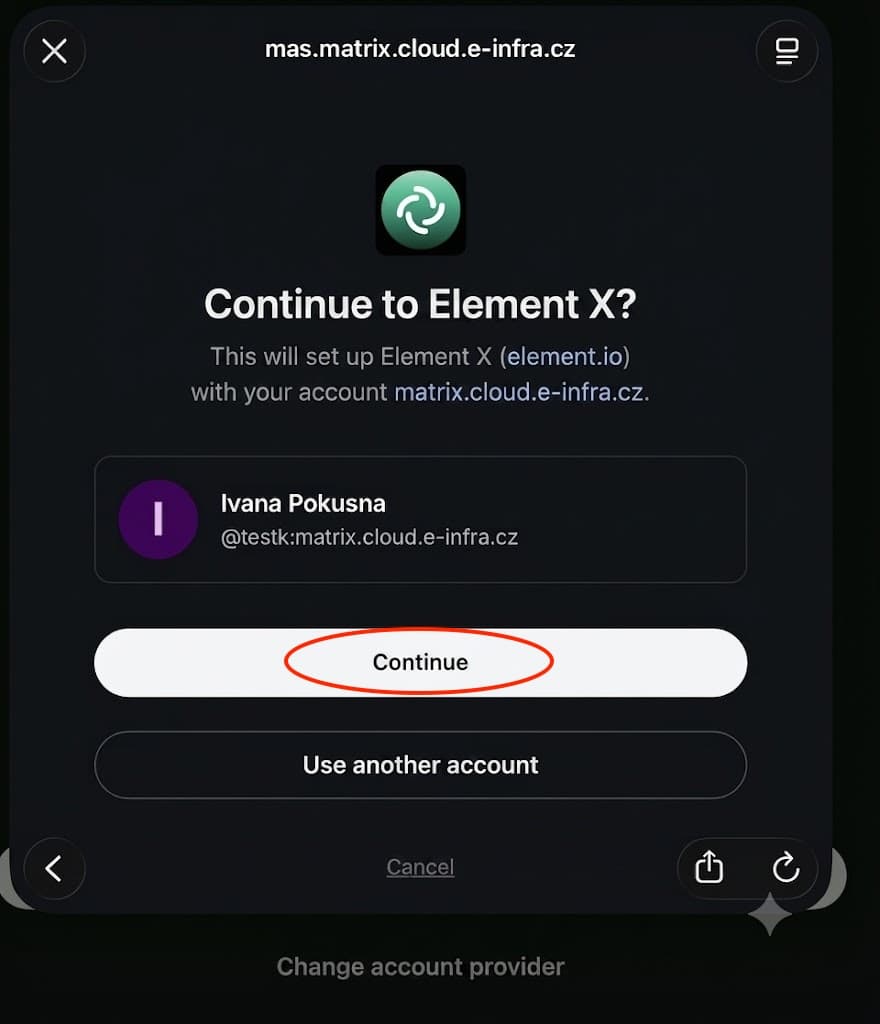
Configure Notifications
To receive push notifications on your mobile device for incoming messages:
- When prompted after login, grant the app permission to send system notifications. Make sure notification permissions are also allowed in your mobile operating system settings.
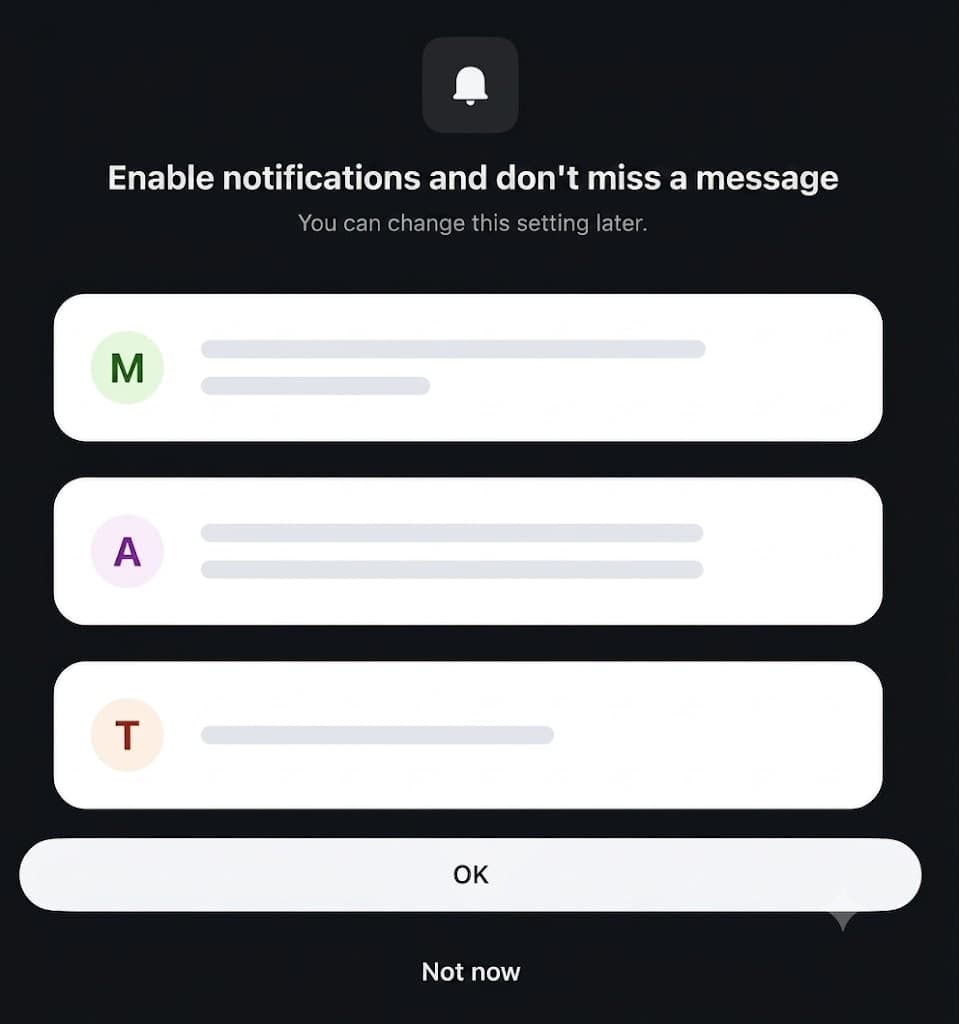
- Or later, open the app settings (tap your profile icon in the top left corner).
- Go to Notifications.
- Configure your alert levels:
- All Messages: Receive notifications for every message in joined rooms.
- Mentions & Keywords Only: Receive notifications only when your username is mentioned or tagged.
How to Set Up the Hermes Agent in Matrix
This guide walks you through deploying and configuring the Hermes agent in your Matrix private room via a web browser.
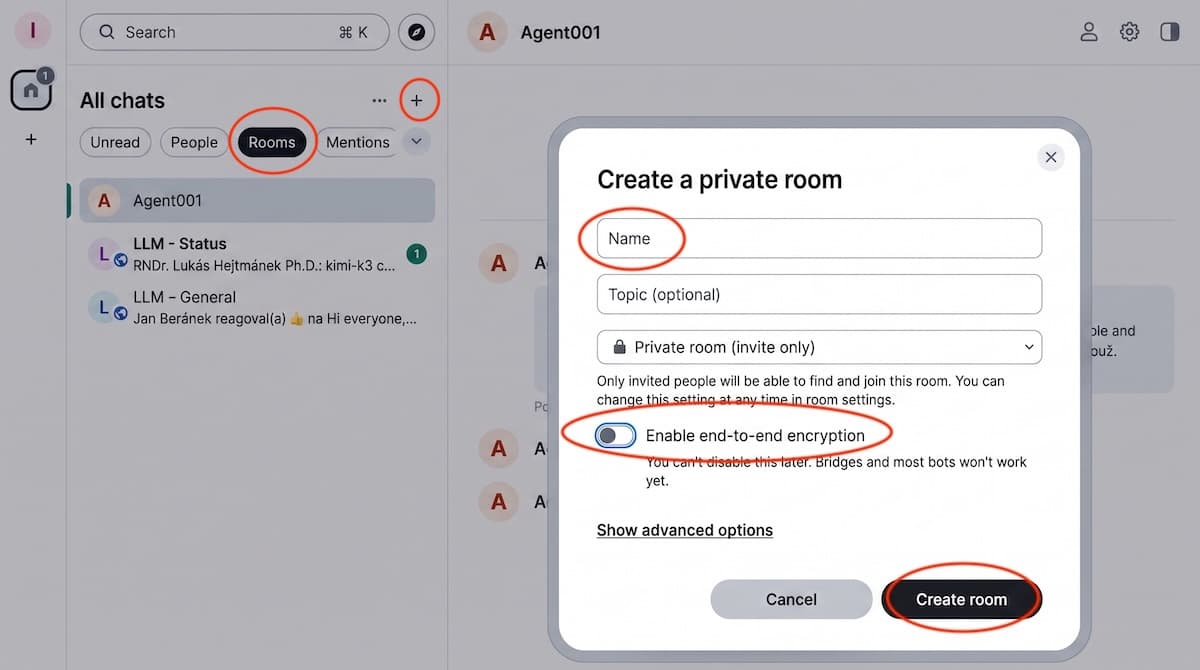
Create a Matrix Room
First, create a new private room in your Matrix web client.
IMPORTANT: The room MUST NOT BE ENCRYPTED. If end-to-end encryption is enabled, the agent will not be able to transfer files to and from the chat.
Get Your LLM API Key
Make sure you have your LLM API key generated. Copy it to your clipboard, as you will need it during the Rancher deployment phase.
Generate the Agent Configuration
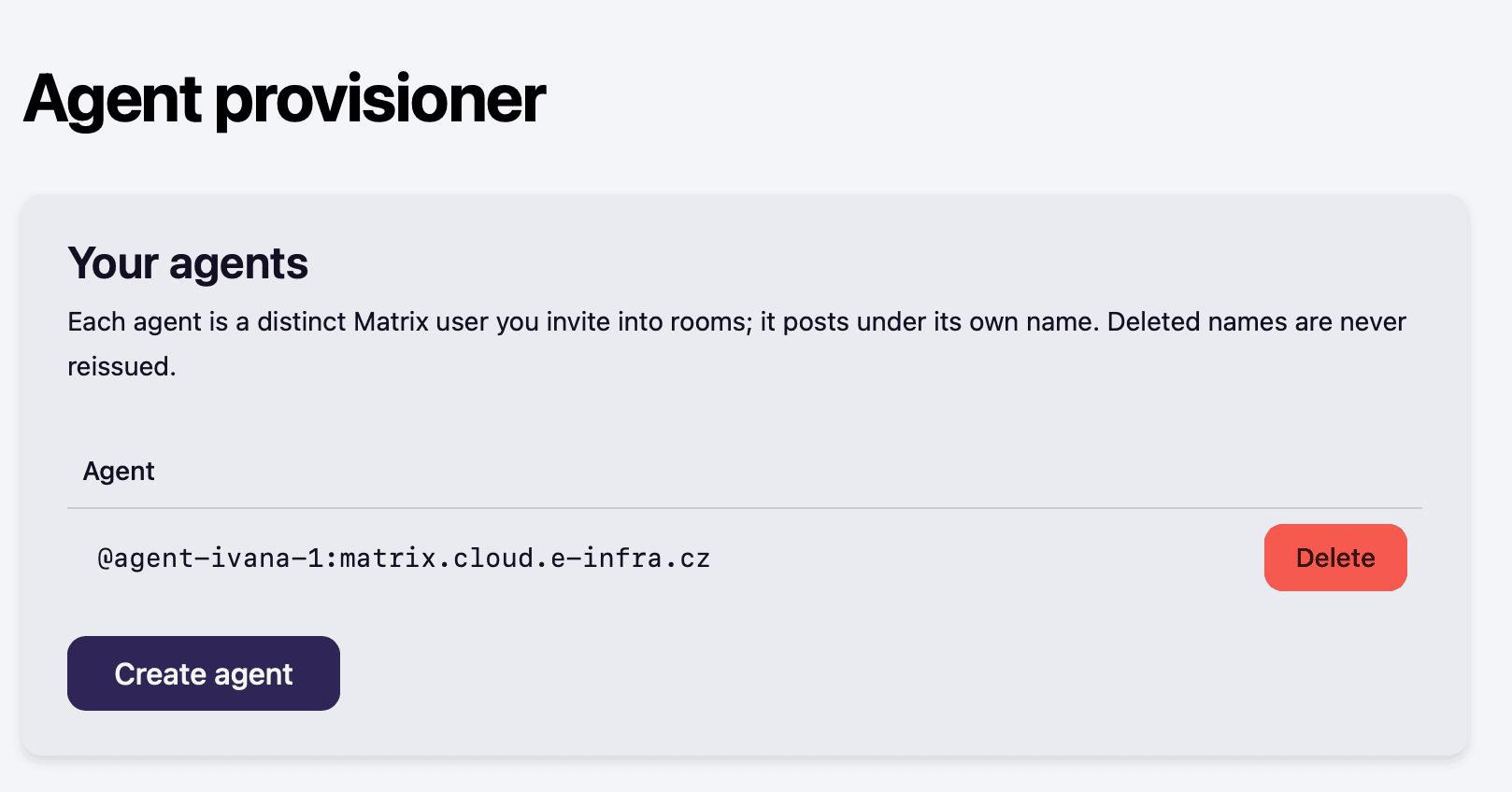
- Navigate to the agent portal at https://app.matrix.cloud.e-infra.cz.
- Follow the on-screen instructions to create a new agent. The name of the agent can not be changed.
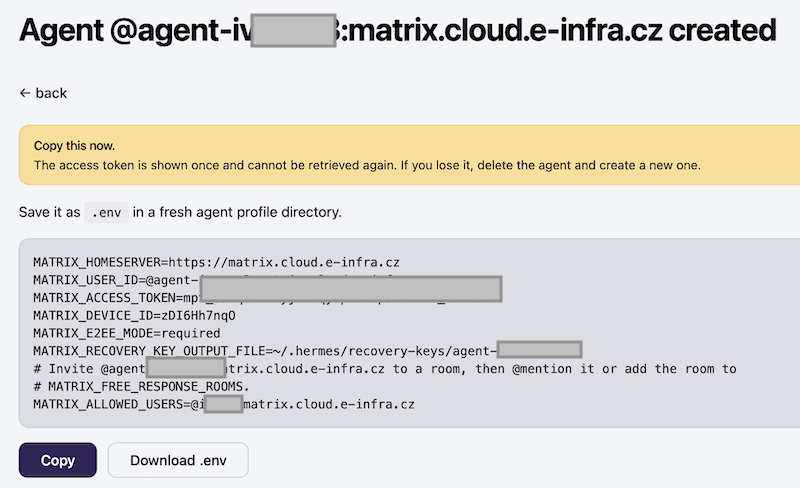
- The system will output a block of environment variables (
env). Copy this entire text snippet, as you will need it during the deployment phase in Rancher.
Configure the Deployment in Rancher
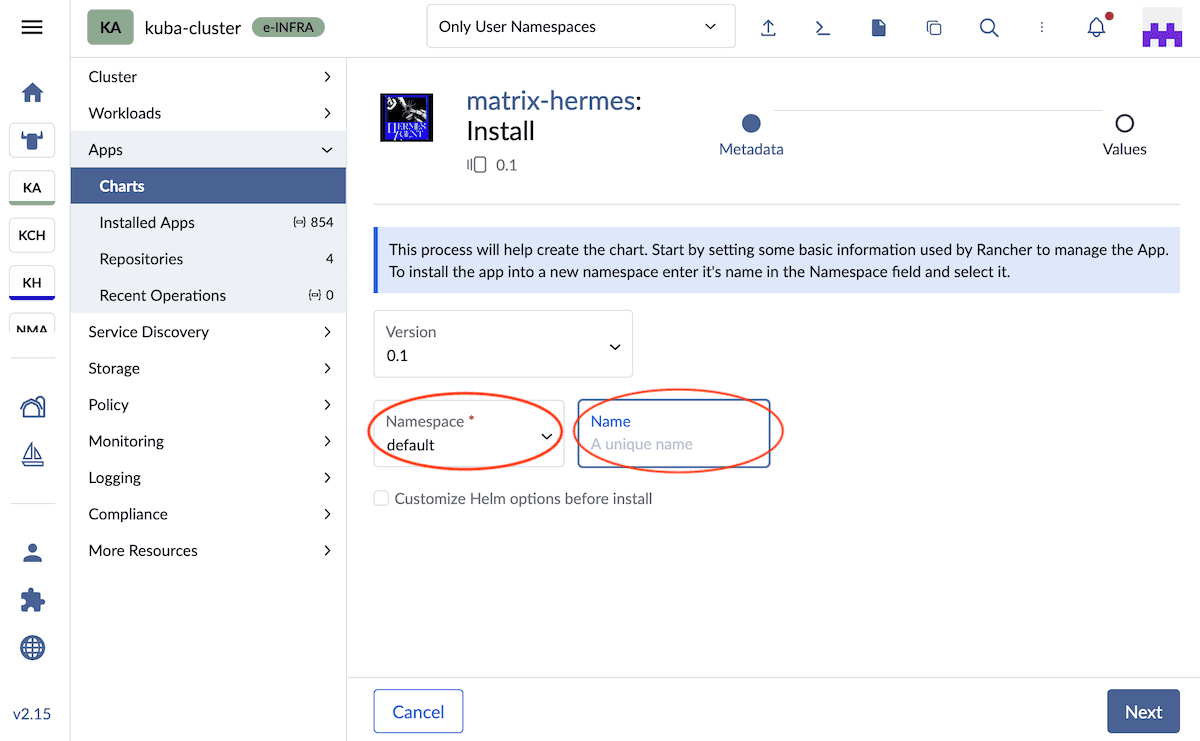
- Log in to your Rancher dashboard and initiate the deployment for the
matrix-hermesapplication,
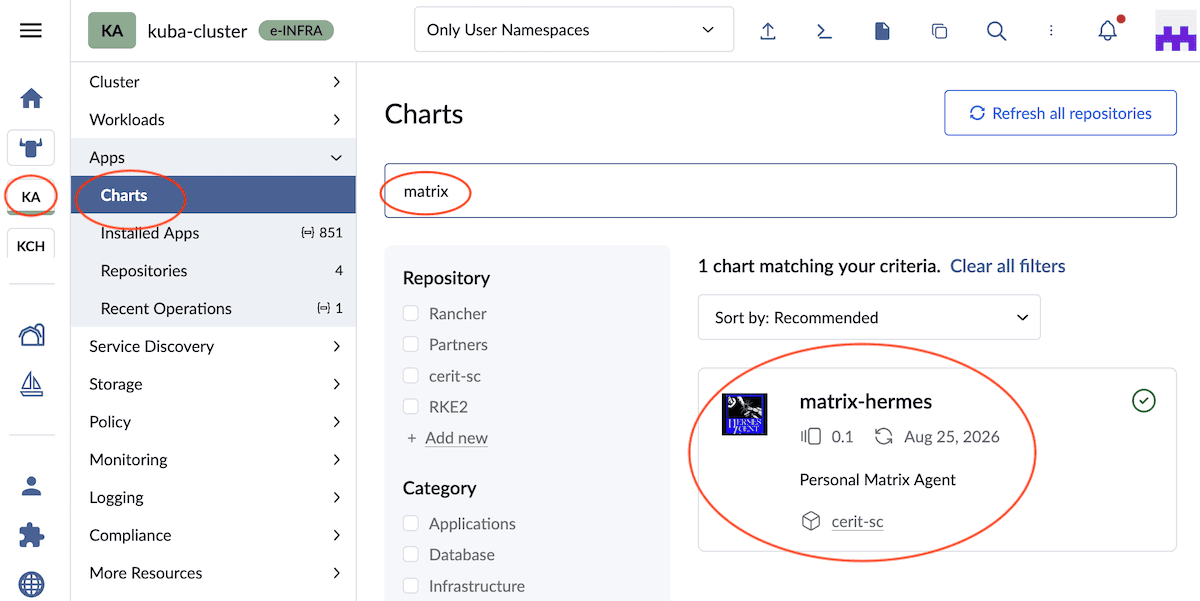
- Locate the
matrix-hermesdeployment,
- Select your namespace (e.g.,
ns-...), - Enter a unique name (lowercase letters only),
- Click Next.
- During the configuration step, you will be asked to provide the following parameters:
- LLM API Key: Paste the key you prepared in Step 2.
- Matrix Room ID: Paste the internal ID of the room you created in Step 1.
Note: You can find this ID in the URL when you open the Matrix room in your browser. It looks something like this:
KeYNIOhcYaqpyBoGQN:matrix.cloud.e-infra.cz - Environment Variables: Paste the complete
envblock you copied from the agent portal during agent configuration.
Tip: Set Namespace Permissions During the installation process, you will be prompted to select the agent’s access level to your namespace. Choose the appropriate level for your use case:
- None
- Read-only
- Full access
After initiating the installation in Rancher, it is highly recommended to check the logs of the deployed pod. This allows you to verify that the agent booted up successfully and connected without errors.
- Once all configurations are correctly filled out, click Install to deploy the
matrix-hermesapplication in Rancher.
Invite the Agent to your Matrix Room
Go back to your Matrix client, open the unencrypted room you created, and invite the newly created Hermes agent user to join.
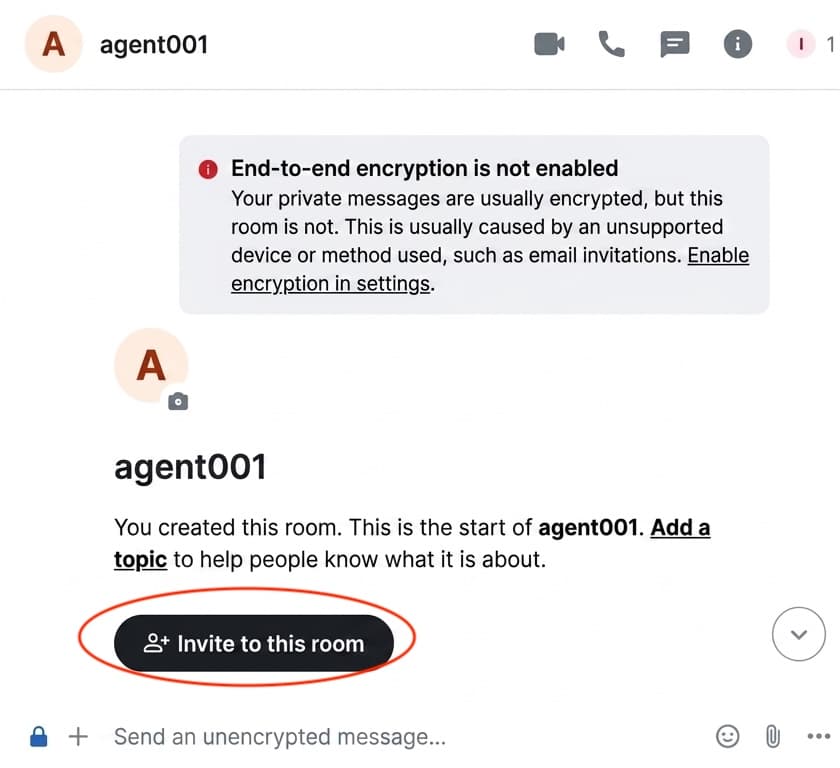
Type the agent name you created to search for it, and send the invite.
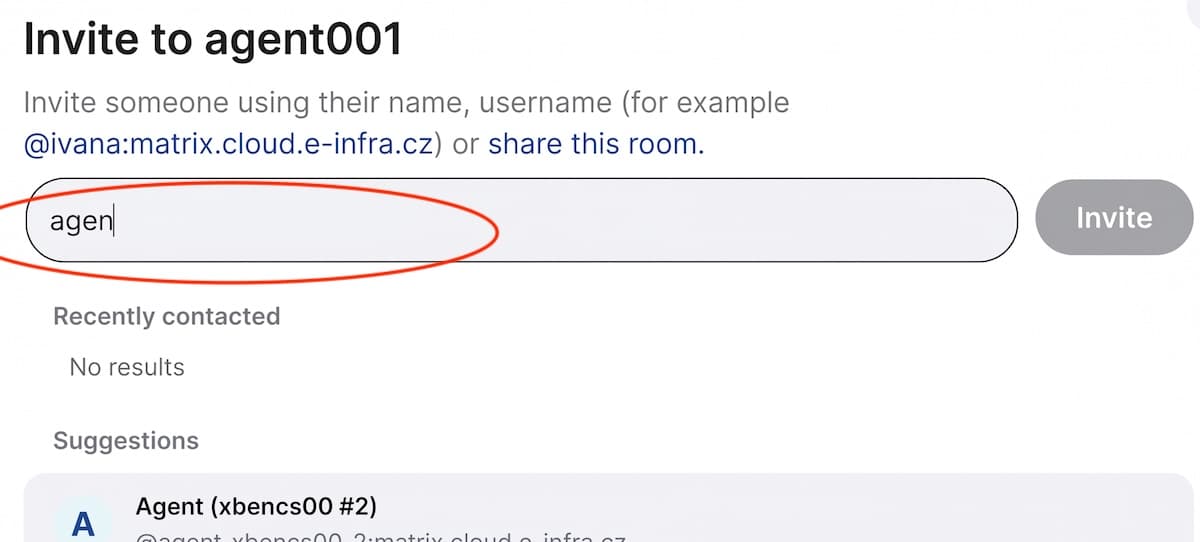
To allow invited users to interact with your agent, you must update your environment variables in Rancher. Add each user’s Matrix ID to the MATRIX_ALLOWED_USERS variable in the .env file.
Everything is set up! You can now start communicating with your Hermes agent directly in the Matrix room.
Quick Security & Best Practices Summary
- Safeguard your recovery key: Keep it stored safely in a password manager. Loss of this key means losing historical encrypted messages.
- Configure notifications: Ensure device notifications are active so you don’t miss important user mentions or room invites.
- Use direct messages vs. rooms: Use DMs for private 1-on-1 chats and Rooms for group projects and topic discussion.
- Verify devices: Always verify newly logged-in mobile or browser sessions to ensure continuous end-to-end encryption integrity.
Organization and Structure
- Separate topics: Use dedicated text channels for different tasks or interests.
- Use threads: Reply to specific messages using threads so you don’t clutter the main chat.
- Post in the right places: Always check whether you are writing in the appropriate channel for that topic.
Communication Rules
- One message is enough: Don’t write every word on a separate line; write the whole thought at once.
- Tag with discretion: Only use @mention when it’s genuinely urgent or directed at a specific person.
- ** Use reactions**: Emoji reactions can often replace an entire message like “I agree” or “understands.”
- Format your text: Put long code snippets or texts into code blocks or hide them under spoilers so they don’t get in the way.
Last updated on