 Documentation
AI Coding Assistants Integration
Introduction
The CERIT-SC AI infrastructure exposes Large Language Models (LLMs) through standard API protocols, enabling you to integrate powerful AI assistance directly into your local development environment. By connecting your tools to our backend, you can leverage high-performance models (such as qwen3-coder or gpt-oss-120b) for coding tasks without running them on your own hardware or relying on external commercial providers.
This guide explains how to configure several popular tools to communicate with our API.
Prerequisite: Before proceeding, ensure you have generated an API key from the AI Chat WebUI. You will need this key to authenticate your client.
Claude Code
Claude Code is also integrated into Jupyter Notebook.
Claude Code can be deployed and configured to work with our models by pointing it to our API endpoint.
Installation
Install Claude Code for your operating system by following the official instructions in the upstream repository:
Make sure the claude CLI is available in your $PATH after installation.
Linux Installation (including Windows WSL)
These instructions apply to both native Linux and Windows Subsystem for Linux (WSL).
1. Install Claude Code
Use the official installation script to install Claude Code:
curl -fsSL https://claude.ai/install.sh | bashAfter installation completes successfully, you should see output similar to the following:
Setting up Claude Code...

✔ Claude Code successfully installed!

  Version: 2.1.5
  Location: ~/.local/bin/claude

  Next: Run claude --help to get started

✅ Installation complete!
2. Start Claude and Exit During Onboarding
Run Claude for the first time:
claude- Proceed through the syntax scheme selection.
- When you reach the ”Select login method” screen, exit the application by pressing Ctrl+C three times.
This step generates the initial configuration file without completing onboarding.
3. Manually Complete Onboarding
Open the Claude configuration file:
vim ~/.claude.jsonAt the end of the file, add the following property:
"hasCompletedOnboarding": true- Ensure the previous last property ends with a comma.
- The JSON must remain valid.
Example of a correctly updated ~/.claude.json file:
{
  "installMethod": "native",
  "autoUpdates": false,
  "cachedGrowthBookFeatures": {
    "tengu_1p_event_batch_config": {
      "scheduledDelayMillis": 5000,
      "maxExportBatchSize": 200,
      "maxQueueSize": 8192
    },
    "tengu_mcp_tool_search": false,
    "tengu_scratch": false,
    "tengu_log_segment_events": false,
    "tengu_log_datadog_events": true,
    "tengu_event_sampling_config": {},
    "tengu_tool_pear": false,
    "tengu_thinkback": false,
    "tengu_sumi": false
  },
  "userID": "xxx",
  "firstStartTime": "2026-01-12T12:59:53.117Z",
  "sonnet45MigrationComplete": true,
  "opus45MigrationComplete": true,
  "thinkingMigrationComplete": true,
  "changelogLastFetched": 1768222793309,
  "autoUpdatesProtectedForNative": true,
  "hasCompletedOnboarding": true
}
Save the file and exit the editor.
4. Run Claude Normally
Start Claude again:
claudeClaude should now launch without triggering the onboarding flow and run smoothly.
Configuration
Claude Code is configured using environment variables. Export the following variables in your shell:
export ANTHROPIC_BASE_URL="https://llm.ai.e-infra.cz/"
export ANTHROPIC_AUTH_TOKEN="sk-..."
export ANTHROPIC_MODEL="agentic"
export ANTHROPIC_DEFAULT_OPUS_MODEL="thinker"
export ANTHROPIC_DEFAULT_SONNET_MODEL="agentic"
export ANTHROPIC_DEFAULT_HAIKU_MODEL="mini"
export CLAUDE_CODE_DISABLE_NONESSENTIAL_TRAFFIC=1
Alternatively, you can define these environment variables in the settings file ~/.claude/settings.json:
{
  "permissions": {
    "defaultMode": "acceptEdits"
  },
  "env": {
    "ANTHROPIC_BASE_URL": "https://llm.ai.e-infra.cz/",
    "ANTHROPIC_AUTH_TOKEN": "sk-...",
    "ANTHROPIC_MODEL": "agentic",
    "ANTHROPIC_DEFAULT_OPUS_MODEL": "thinker",
    "ANTHROPIC_DEFAULT_SONNET_MODEL": "agentic",
    "ANTHROPIC_DEFAULT_HAIKU_MODEL": "mini",
    "CLAUDE_CODE_DISABLE_NONESSENTIAL_TRAFFIC": "1"
  }
}
Variable description:
ANTHROPIC_BASE_URL– Base URL of our LLM API.ANTHROPIC_AUTH_TOKEN– Your API key obtained from https://chat.ai.e-infra.cz.ANTHROPIC_MODEL– Default model to use when running Claude Code.ANTHROPIC_DEFAULT_OPUS_MODEL– Default model to use when running Claude Code for reasoning and complex tasks.ANTHROPIC_DEFAULT_SONNET_MODEL– Default model to use when running Claude Code for reasoning and moderately complex tasks.ANTHROPIC_DEFAULT_HAIKU_MODEL– Default model to use for simple tasks.CLAUDE_CODE_DISABLE_NONESSENTIAL_TRAFFIC– Disables sending telemetry and various reporting (not used with non-Anthropic APIs).
Running Claude Code
Once the environment variables are set, start Claude Code with:
claude [project-dir]You should now be able to interact with Claude Code using our backend and selected model.
You can choose any of our available models (e.g., qwen3-coder-next). However, not all models are guaranteed to work correctly with Claude Code.
If Claude Code stops responding or terminates unexpectedly, the most common cause is that the model’s context size has been exceeded. To resolve this, switch to a different model with a larger context window or reduce the amount of text being processed at once.
Codex
Codex can be deployed and configured to work with our models by pointing it to our API endpoint.
Installation
Install Codex for your operating system by following the official instructions in the upstream repository:
Ensure the codex CLI is available in your $PATH after installation.
For Linux or Windows, it is recommended to visit the Releases page and download the appropriate precompiled binary for your platform.
Configuration
Set these environment variables:
export OPENAI_BASE_URL=https://llm.ai.e-infra.cz
export OPENAI_API_KEY=sk-...
Replace sk-... with your API key obtained from: https://chat.ai.e-infra.cz
Run the application with the following command:
codex --model coder --full-autoWhen prompted to sign in:
- Select Provide your own API key.
- Confirm Use your own OpenAI API key for usage-based billing.
After this, the setup is complete and ready to use.
Open Code
Open Code can be deployed and configured to work with our models by pointing it to our API endpoint.
Installation
Install Open Code for your operating system by following the official instructions in the upstream repository:
Ensure the opencode CLI is available in your $PATH after installation.
Configuration
- Save the configuration below to the file
~/.config/opencode/opencode.json:
{
  "$schema": "https://opencode.ai/config.json",
  "provider": {
    "litellm": {
      "npm": "@ai-sdk/openai-compatible",
      "name": "LiteLLM",
      "options": {
        "baseURL": "https://llm.ai.e-infra.cz/v1"
      },
      "models": {
        "agentic": {
          "name": "agentic"
        },
        "mini": {
          "name": "mini"
        },
        "glm": {
          "name": "glm"
        },
        "coder": {
          "name": "coder"
        },
        "thinker": {
          "name": "thinker"
        }
      }
    }
  }
}
Check for the current model names, or use agentic, coder, mini, and thinker as aliases.
-
Start the application by running:
opencode -
Inside
opencode, type:/connect -
From the list of available providers, scroll to the end and select LiteLLM.
-
When prompted, paste your API key obtained from: https://chat.ai.e-infra.cz
-
Select the model:
coder
Once completed, the setup is ready to use.
- The model
gpt-oss-120bhas partial support and may not work as expected. - The model
qwen3-coder-nextshould work as well asqwen3-coder.
Hermes
Hermes is an AI coding agent from Nous Research that can be configured to work with our models by pointing it to our API endpoint.
Installation
Install Hermes using the official installation script:
curl -fsSL https://hermes-agent.nousresearch.com/install.sh | bash -s -- --skip-setupConfiguration
After installation, download the Hermes configuration file from the config download link and place it at ~/.hermes/config.yaml.
To authenticate with our API, either:
- Set the
OPENAI_API_KEYenvironment variable to your e-infra API key, or - Replace the API key directly in the downloaded
config.yamlfile.
Visual Studio Code Integration
You can integrate Claude Code and AI assistance into Visual Studio Code through either the native Claude Code extension or third-party extensions. These extensions enable AI assistance in various coding roles, including simple chat, agent mode, and autocomplete. Chat provides a familiar conversational interface, agent mode analyzes or edits files in your project, and autocomplete suggests code as you write.
Installing Visual Studio Code
First, install Visual Studio Code (VS Code)
- By downloading the installation package from the official website.
- Through the repository of your Linux distribution.
After installation, launch VS Code.
Native Claude Code Extension
This guide describes the configuration of the native Claude Code extension in Visual Studio Code so that AI models provided via the CERIT-SC API can be utilized. The procedure is primarily intended for Linux users, but the configuration principle is similar in other operating systems.
Installation Steps
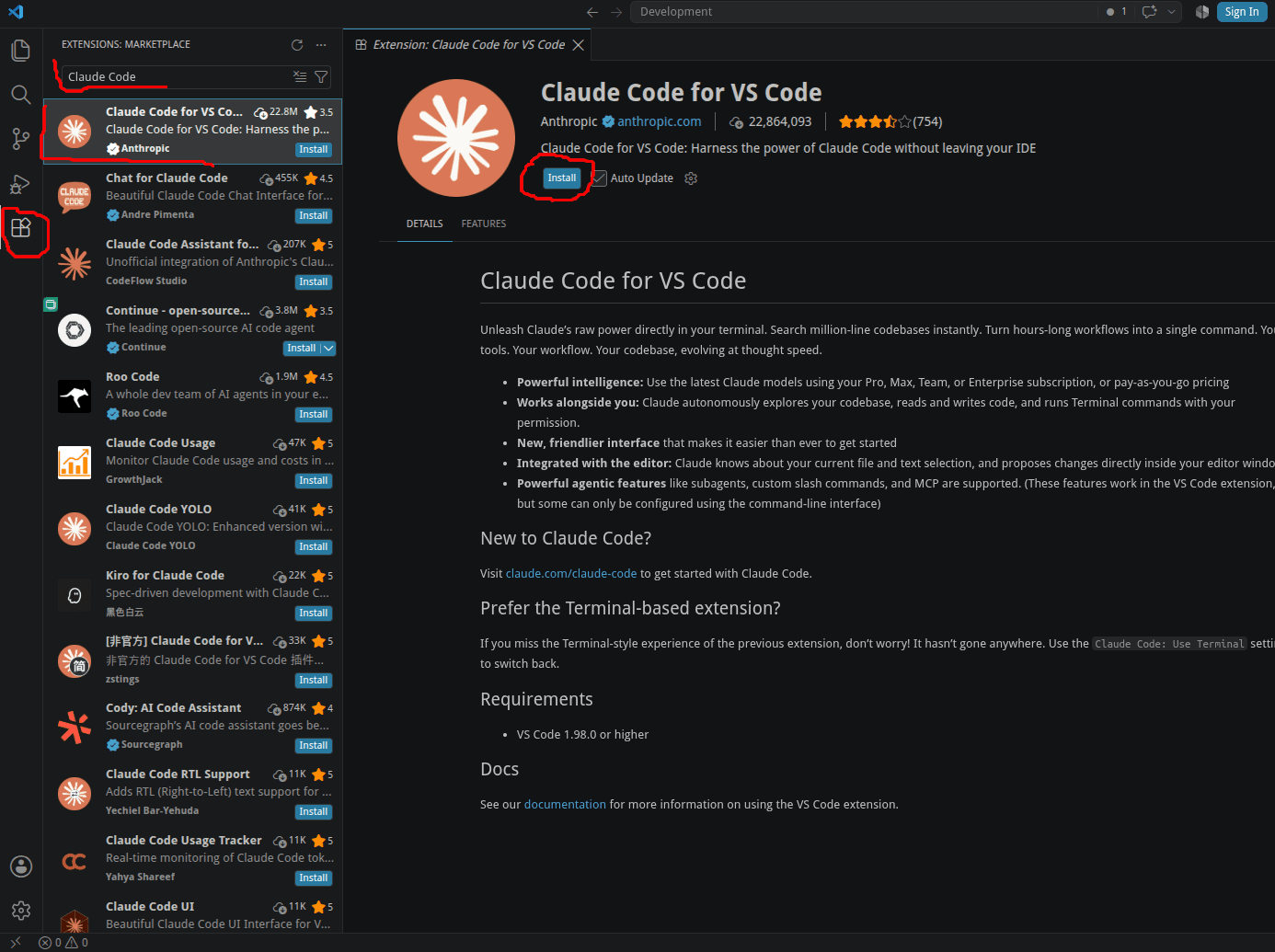
- Open Visual Studio Code
- Go to Extensions (
Ctrl+Shift+X) - Search for
Claude Code - Install the official
Claude Codeextension
Configuration
After installation, the extension must be configured to use the CESRIT-SC API. For the Claude Code extension, click the icon:
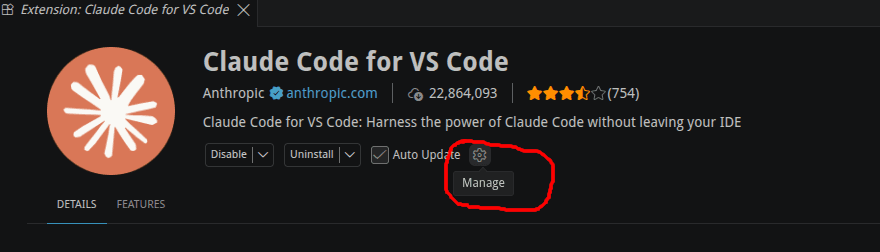
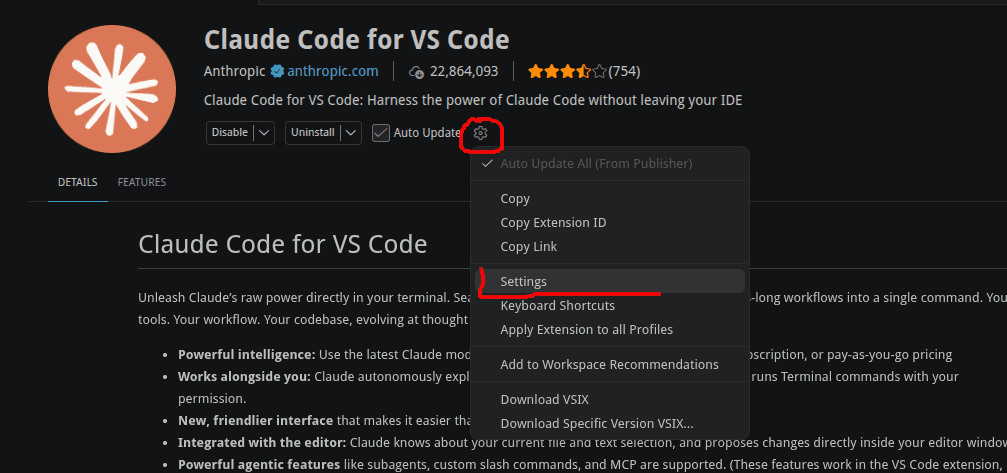
Manage → Settings
VS Code will automatically set a filter for this extension’s settings only.
At the top of the settings, a filter such as the following should be visible:
@ext:Anthropic.claude-code
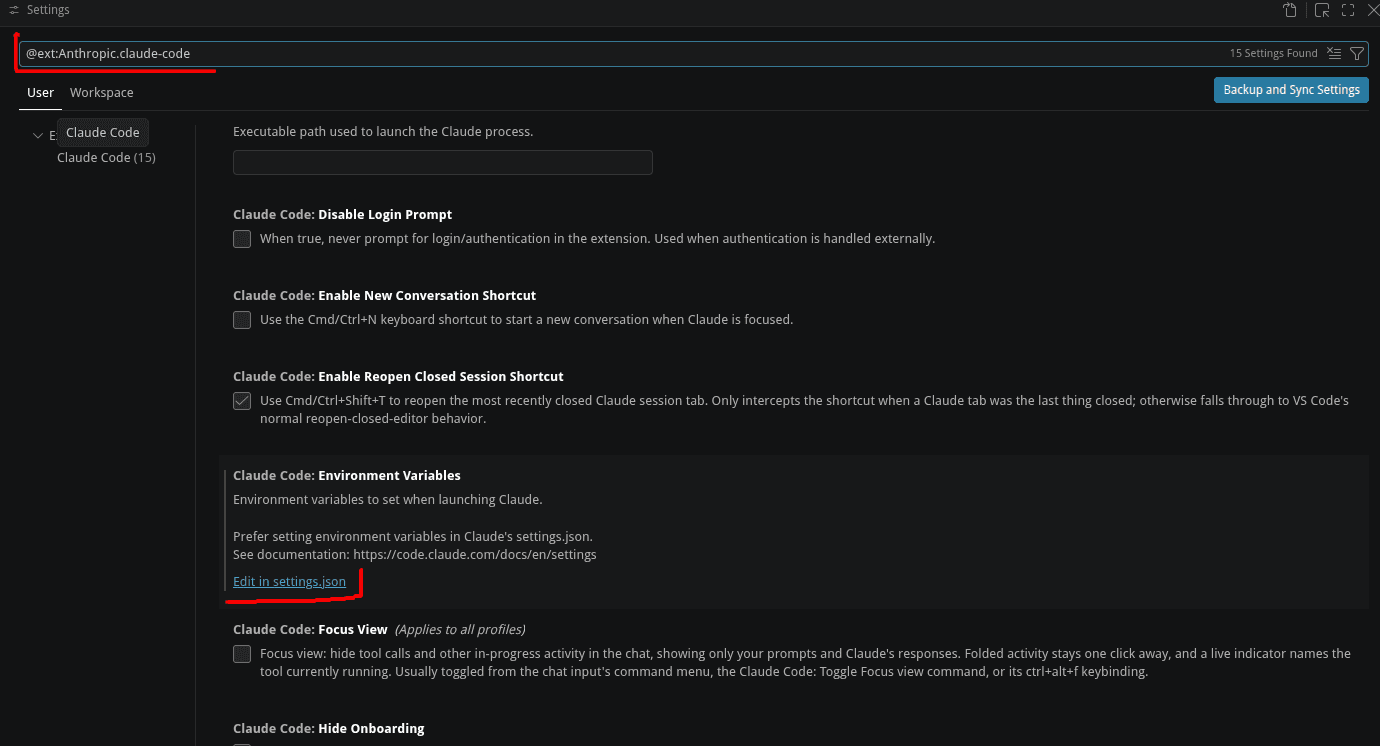
Configure settings.json:
- Open Edit → Preferences → Settings (or press
Ctrl+,) - Search for
Claude Code - Navigate to the Environment Variables section
- Click Edit in settings.json
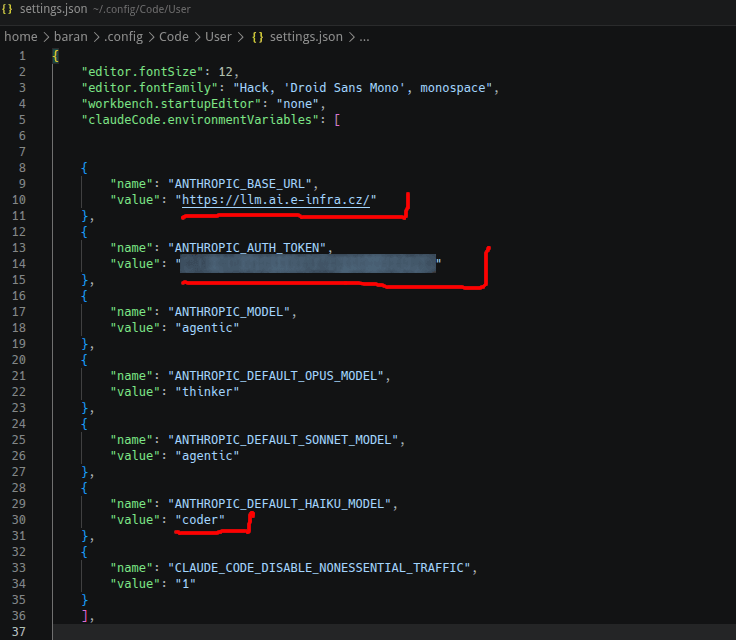
Add the following environment variables with your API key from AI Chat WebUI in the following format:
"claudeCode.environmentVariables": [

    {
        "name": "ANTHROPIC_BASE_URL",
        "value": "https://llm.ai.e-infra.cz/"
    },
    {
        "name": "ANTHROPIC_AUTH_TOKEN",
        "value": "sk-..."
    },
    {
        "name": "ANTHROPIC_MODEL",
        "value": "agentic"
    },
    {
        "name": "ANTHROPIC_DEFAULT_OPUS_MODEL",
        "value": "thinker"
    },
    {
        "name": "ANTHROPIC_DEFAULT_SONNET_MODEL",
        "value": "agentic"
    },
    {
        "name": "ANTHROPIC_DEFAULT_HAIKU_MODEL",
        "value": "mini"
    },
    {
        "name": "CLAUDE_CODE_DISABLE_NONESSENTIAL_TRAFFIC",
        "value": "1"
    }
],
API Token: The parameter ANTHROPIC_AUTH_TOKEN contains your API token: sk-....
⚠️ Replace sk-... with your actual API key obtained from https://chat.ai.e-infra.cz.
Never share or publish your token.
Model names: Individual parameters specify which model Claude Code should use. For example:
ANTHROPIC_MODELcan contain:coderoragentic
Similarly, you can set:
ANTHROPIC_DEFAULT_OPUS_MODELANTHROPIC_DEFAULT_SONNET_MODELANTHROPIC_DEFAULT_HAIKU_MODEL
to aliases:
thinkeragenticminiSpecific names must correspond to the models available on the API endpoint.
Once configured, save the file: Ctrl+S.
We then recommend restarting VS Code.
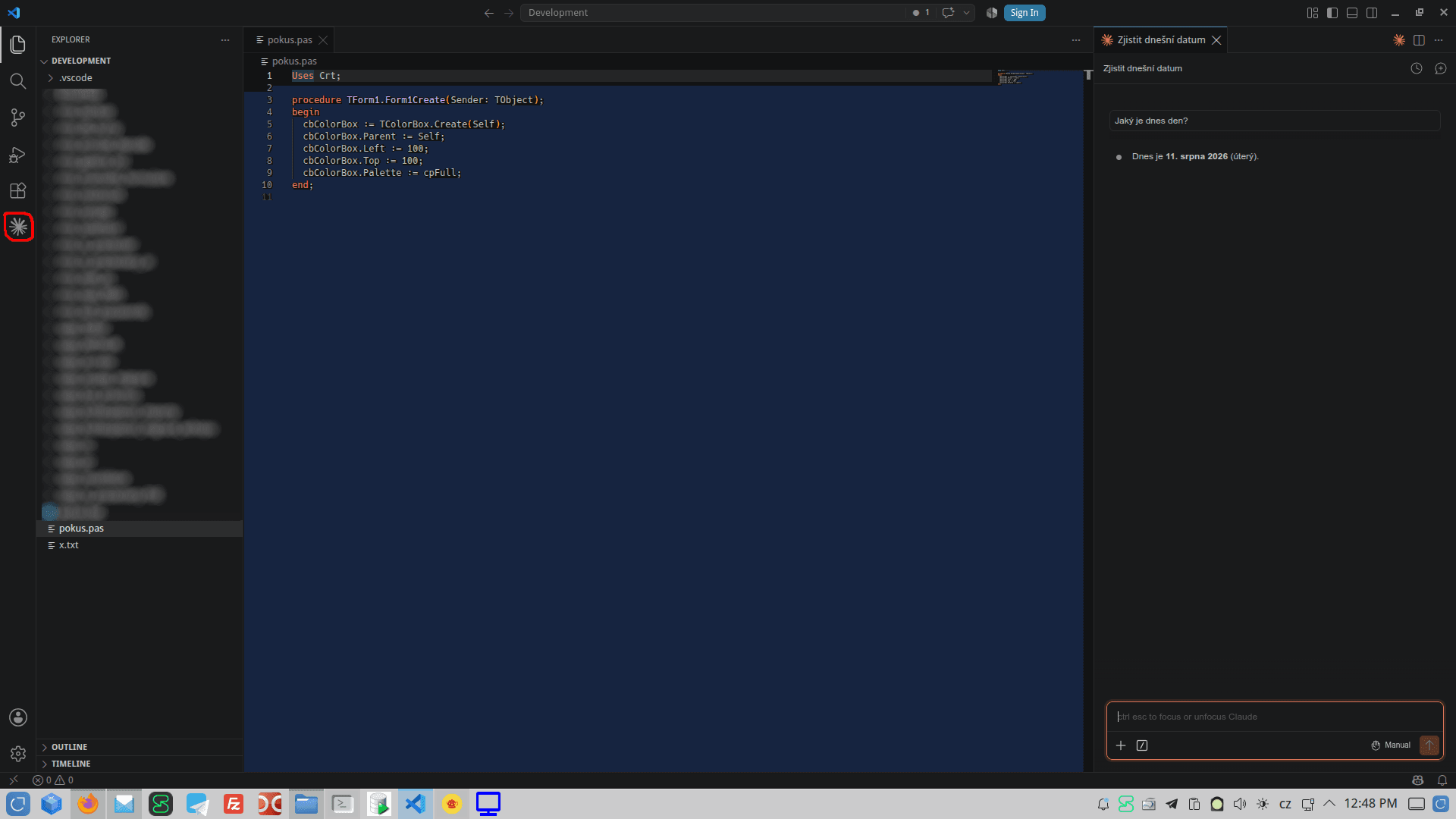
The extension will use our LLM backend for AI-assisted coding tasks.
3rd Party Extensions
Integrate AI chatbots with Visual Studio Code using third-party extensions such as Continue or Zoo-Code.
Install the Continue extension
With Visual Studio Code running:
- Open the Extensions tab (
Ctrl+Shift+X) and search forContinue - Click the extension and then click
Install - After installation, access the Continue extension by clicking the Continue icon in the left sidebar
Configure the Continue extension
Configure the Continue extension by editing the config.yaml file:
-
Access the Continue extension within Visual Studio Code using the icon in the left sidebar
-
Click
Open settingsin the top-right corner of theContinueextension window. -
Click
Configs. -
Click the
Open configurationicon at the end of the line labeledLocal Config. -
Once the
config.yamlis opened, use the following configuration with your own<api-key>(guide above):
%YAML 1.1
---
name: Local Assistant
version: 1.0.0
schema: v1
model_defaults: &model_defaults
  provider: openai
  apiKey: <api-key>
  apiBase: https://llm.ai.e-infra.cz/v1
models:
  - name: autocomplete-coder
    <<: *model_defaults
    model: coder
    promptTemplates:
      autocomplete: '<|fim_prefix|>{{{ prefix }}}<|fim_suffix|>{{{ suffix }}}<|fim_middle|>'
    autocompleteOptions:
      transform: false
    defaultCompletionOptions:
      temperature: 0.6
      maxTokens: 512
    roles:
      - autocomplete
  - name: chat-coder
    <<: *model_defaults
    model: coder
    env:
      useLegacyCompletionsEndpoint: false
    roles:
      - chat
      - edit
context:
  - provider: code
  - provider: docs
  - provider: diff
  - provider: terminal
  - provider: problems
  - provider: folder
- provider: codebase- Save the file. The new configuration should apply immediately.
- Verify that
FIMautocomplete is being used by checking theContinuebutton in the Visual Studio Code status bar (bottom-right corner). It should displayContinue, notContinue (NE). IfContinue (NE)is shown, click this button and selectUse FIM autocomplete over Next Edit.
Usage of AI in Visual Studio Code
- Chat: Access chat by clicking the Continue icon in the left sidebar
- Agent mode: In chat, engage agent mode by asking to analyze, explain, or edit files in your current project. This requires additional permissions such as read/write access to related files; you must grant these permissions for the agent to perform requested actions
- Autocomplete: The autocomplete feature continuously suggests new code as you write. Press
Tabto accept suggestions. Responsiveness depends on model speed. You can change the model fromqwen3-codertogpt-oss-120bin the autocomplete configuration section for faster responses, though the default model generally performs better on coding tasks
Zoo-Code
Zoo-Code is a Visual Studio Code extension offering AI assistance with agent and code understanding capabilities.
Install the Zoo-Code extension
With Visual Studio Code running:
- Open the Extensions tab (
Ctrl+Shift+X) - Search for
Zoo-Code - Select the extension and click
Install - After installation, access Zoo-Code via its icon in the left sidebar
Configure the Zoo-Code extension
To use self-hosted models:
- Open Zoo-Code using the sidebar icon
- Open Settings
- In the Providers section:
- API Provider:
OpenAI Compatible - Base URL:
https://llm.ai.e-infra.cz/v1 - API Key: Your key from AI Chat WebUI
- Model:
coder(or alternative)
- API Provider:
- Set Context Window Size using this table
- Save settings
Using Zoo-Code
- Select agents via the agent/mode selector in the extension
- After submitting a prompt, agents work autonomously until intervention is needed
- For advanced usage, consult the Zoo-Code documentation
Codebase Indexing
Index the codebase using one of our embedding models to help agents better search and understand your codebase.
To store the index, set up a local Qdrant database. Here is an example docker-compose.yaml:
services:
  qdrant:
    image: qdrant/qdrant
    ports:
      - "6333:6333"
    volumes:
      - qdrant_storage:/qdrant/storage
volumes:
  qdrant_storage:
Configure codebase indexing by following these steps:
- Launch a new database instance by running
docker compose up -din the directory containing thedocker-compose.yamlfile - In the Zoo-Code extension interface, open the codebase/indexing settings.
- Set the following values:
- Provider:
OpenAI Compatible - Base URL:
https://llm.ai.e-infra.cz/v1 - API Key: Your API key from AI Chat WebUI
- Model: One of our embedding models, e.g.,
qwen3-embedding-4b - Model Dimension: The embedding vector size of the selected model, e.g.,
2560forqwen3-embedding-4b.
- Provider:
- Save settings.
- Qdrant URL:
http://localhost:6333 - Qdrant API Key: Leave empty if you used the provided Docker Compose configuration.
- Qdrant URL:
- Create the index by clicking on
Start Indexing. - After the indexing is finished, the agents will have access to the database and be able to better search and understand the codebase.
Caveats
Disable all other Visual Studio Code extensions that provide AI autocomplete features. Otherwise, the Continue extension may not work properly.
JetBrains IDE
You can integrate CERIT-SC models with JetBrains IDEs using the built-in AI Assistant and OpenAI-compatible providers. This setup works well for chat-based workflows directly in the IDE.
JetBrains AI Assistant
Install the AI Assistant plugin
With your JetBrains IDE running:
- Open
Settings/Preferences. - Go to
Pluginsand search forAI Assistant. - Install the plugin and restart the IDE if prompted.
Configure a custom provider
- Open
Settings/Preferences. - Go to
Tools->AI Assistant. - Add a custom provider (OpenAI-compatible) with:
- Base URL:
https://llm.ai.e-infra.cz/v1 - API Key: Your key from AI Chat WebUI
- Model:
coder(or another supported model)
- Save the settings and open AI chat in the IDE sidebar.
JetBrains AI Assistant custom providers currently work only in chat mode.
Agent Integration
For autonomous/agentic workflows, use Claude Code instead of JetBrains AI Assistant custom providers. The setup in the Claude Code section works for agent-style integration with our backend.
ProxyAI Custom OpenAI Provider
If you use ProxyAI in JetBrains, add the following custom OpenAI provider configuration:
[
  {
    "id": "f925c0bd-7387-483b-8a55-3fb6572ad4d2",
    "name": "CERIT-SC",
    "template": "OPENAI",
    "apiKey": "",
    "chatCompletionSettings": {
      "url": "https://llm.ai.e-infra.cz/v1/chat/completions",
      "headers": {
        "Authorization": "Bearer $CUSTOM_SERVICE_API_KEY",
        "X-LLM-Application-Tag": "proxyai",
        "Content-Type": "application/json"
      },
      "body": {
        "model": "kimi",
        "messages": "$OPENAI_MESSAGES",
        "temperature": 0.1,
        "max_tokens": 512
      }
    },
    "codeCompletionSettings": {
      "codeCompletionsEnabled": true,
      "parseResponseAsChatCompletions": false,
      "infillTemplate": "OPENAI",
      "url": "https://llm.ai.e-infra.cz/v1/completions",
      "headers": {
        "Authorization": "Bearer $CUSTOM_SERVICE_API_KEY",
        "X-LLM-Application-Tag": "proxyai",
        "Content-Type": "text/event-stream"
      },
      "body": {
        "suffix": "$SUFFIX",
        "stream": true,
        "model": "kimi",
        "temperature": 0.6,
        "prompt": "$PREFIX",
        "max_tokens": 512
      }
    }
  }
]
Keep apiKey empty in the JSON and provide your key through the appropriate setting.