 Documentation
phpMyAdmin
Running phpMyAdmin
If not already logged, log to rancher.cloud.e-infra.cz, see Rancher section.
By following steps described in this article you will be able to install phpMyAdmin application used to handle the administration of MySQL over the web phpMyAdmin supports a wide range of operations on MySQL and MariaDB.
Select application to run
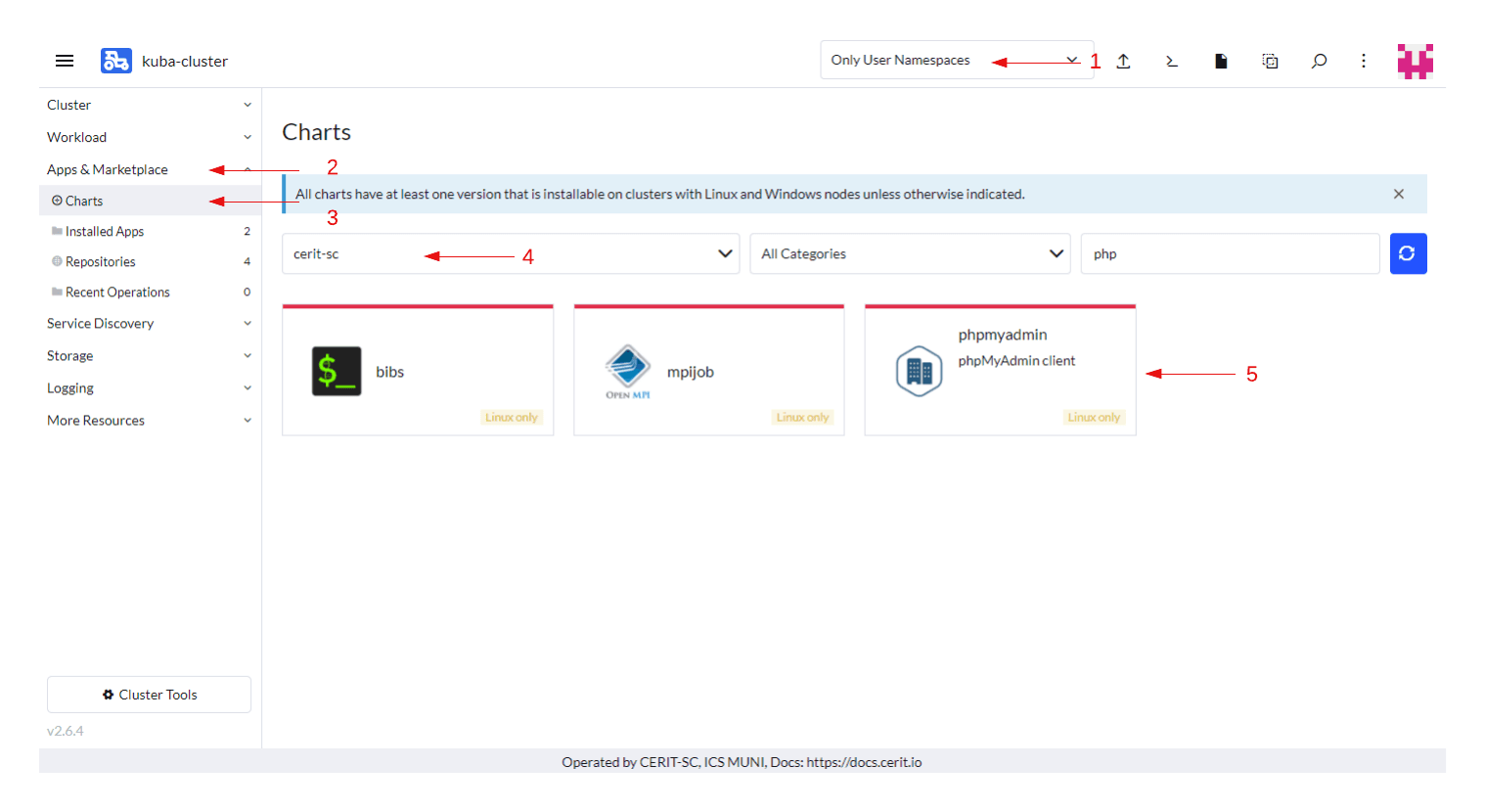
Navigate through Only User Namespaces (1), App & Marketplace (2), Charts (3), cerit-sc (4), and select moodle (5). See screenshot below.
Install the application
When you click on the chart, hit Install to continue.
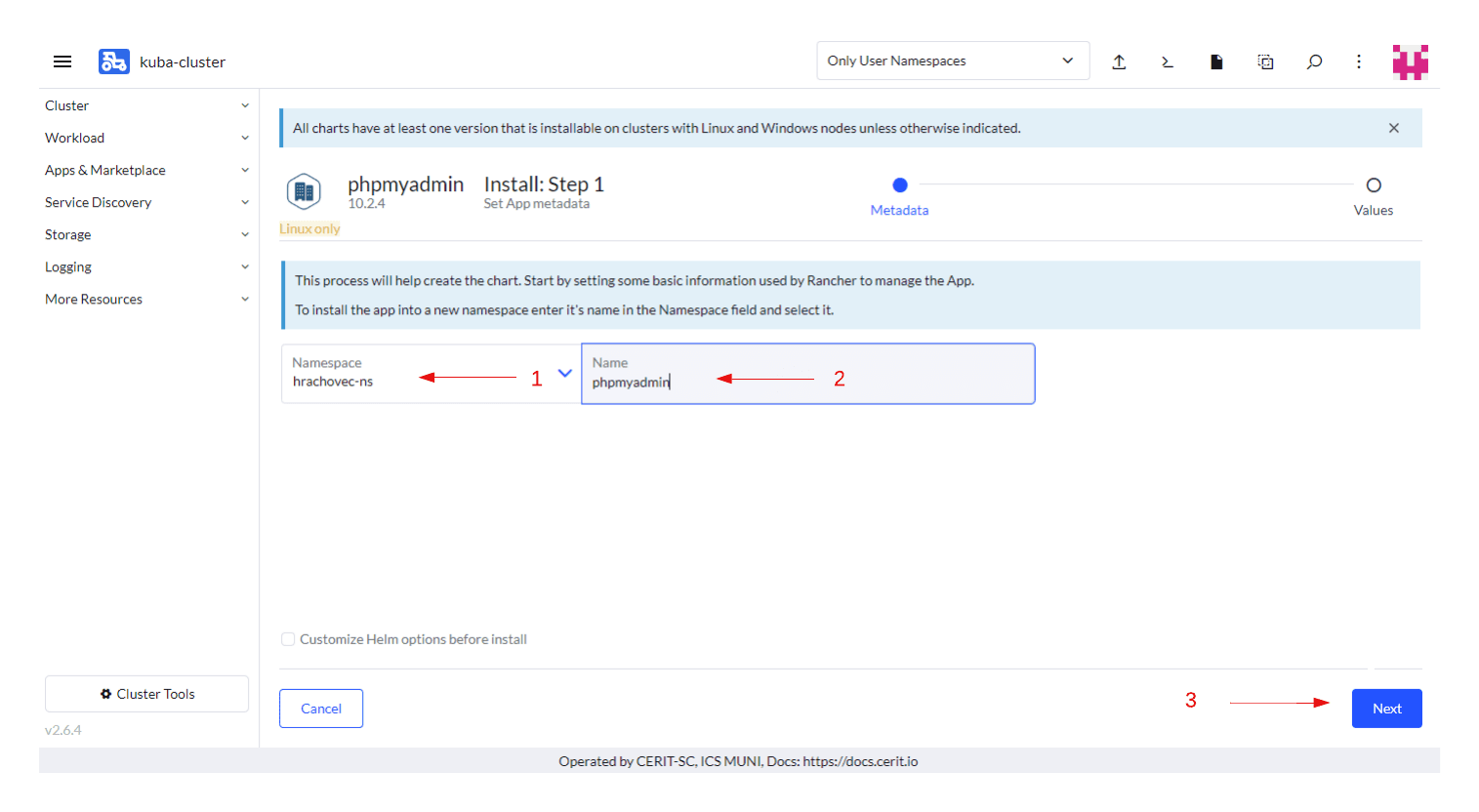
Select your namespace and name for your application, then click Next
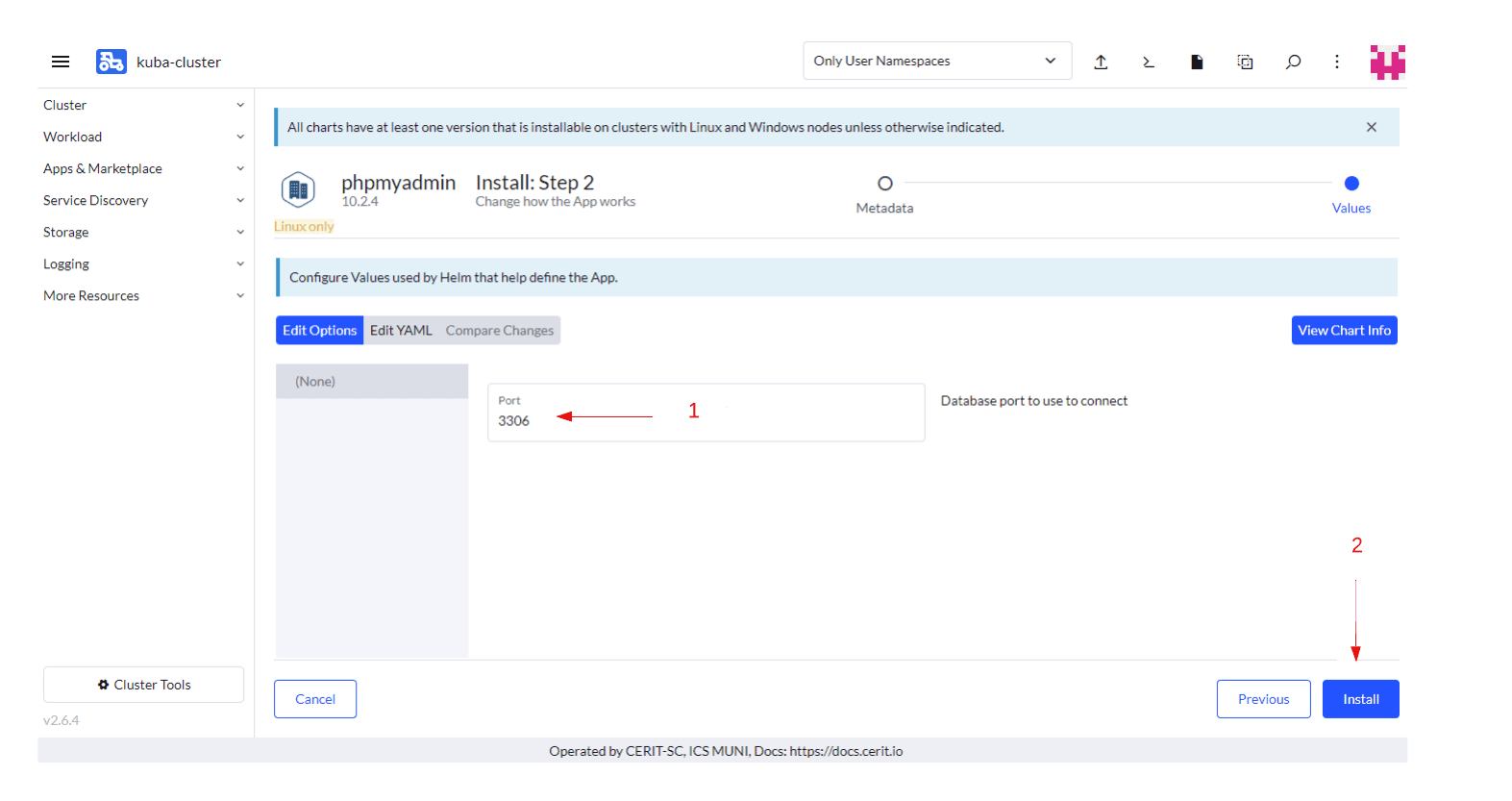
You will see two options to customize your app, in the field Port fill in port of your database and hit Install
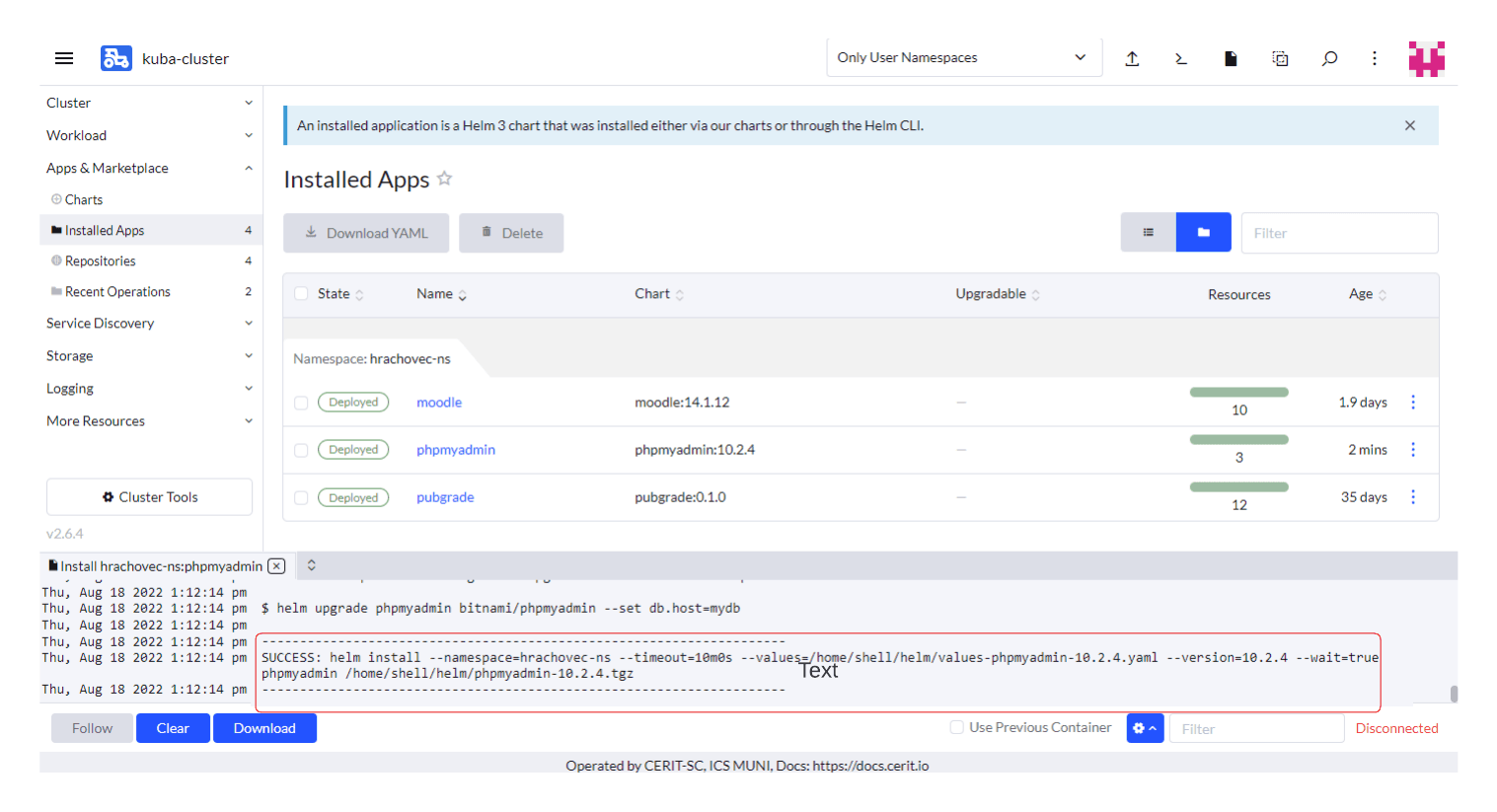
Wait for the following message to appear.
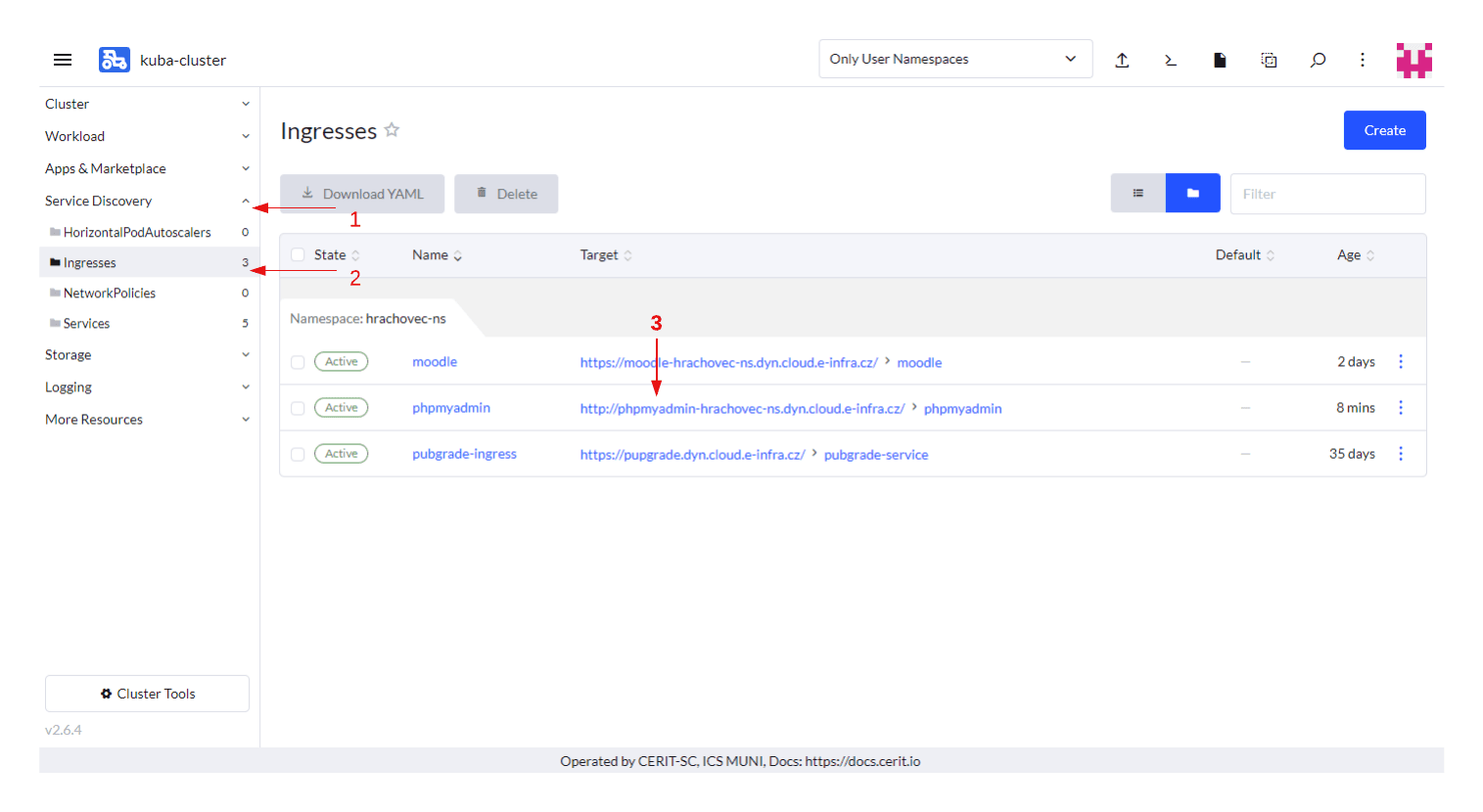
Navigate to Service Discovery, Ingresses and click on your hostname.
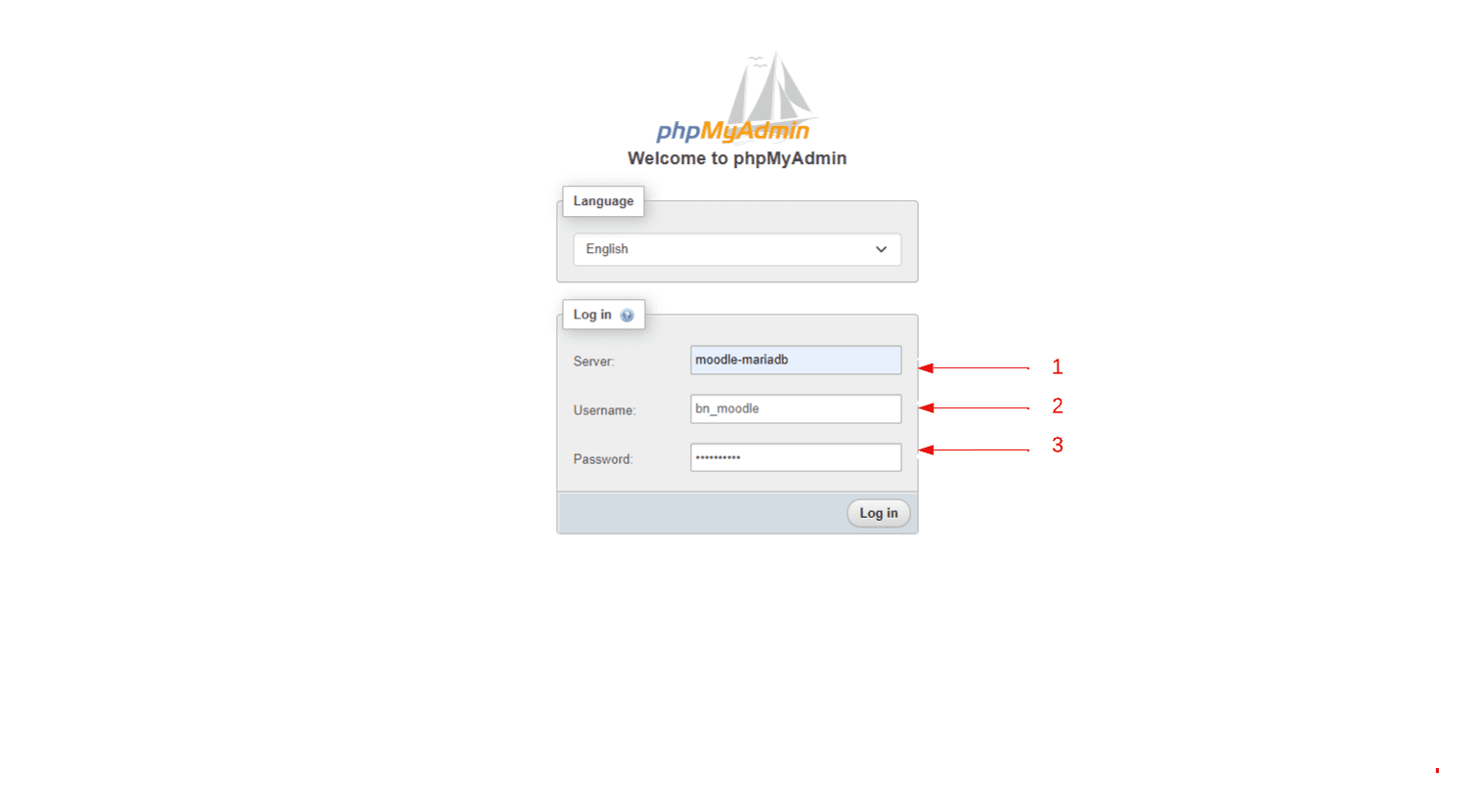
You will open the login of the application, you will have to fill in your database login credentials, for purpose of this tutotrial I’m logging in Moodle’s MariaDB database.
In the field server fill in service name of your database, in the field Username enter username to your database and then your Password.
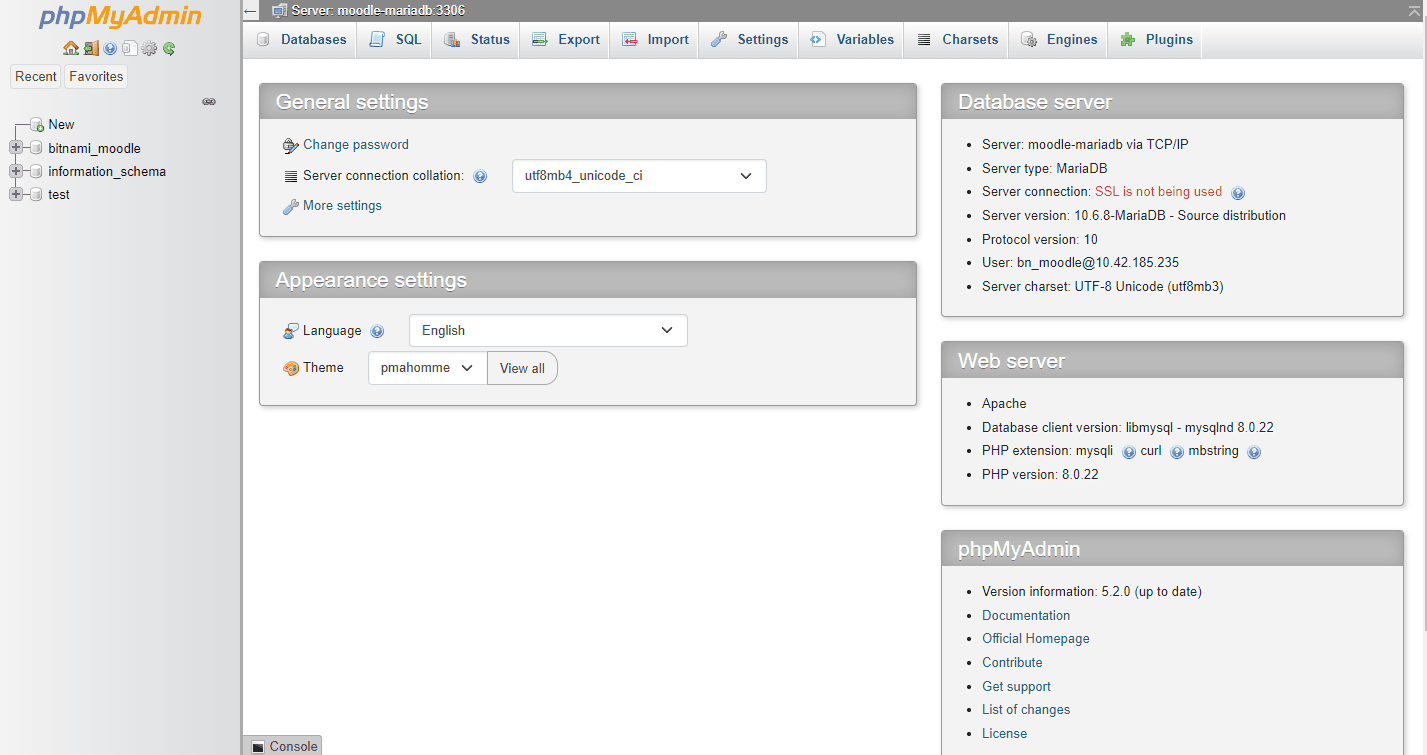
After successful login, you will be greeted with this window
Uninstaling the application
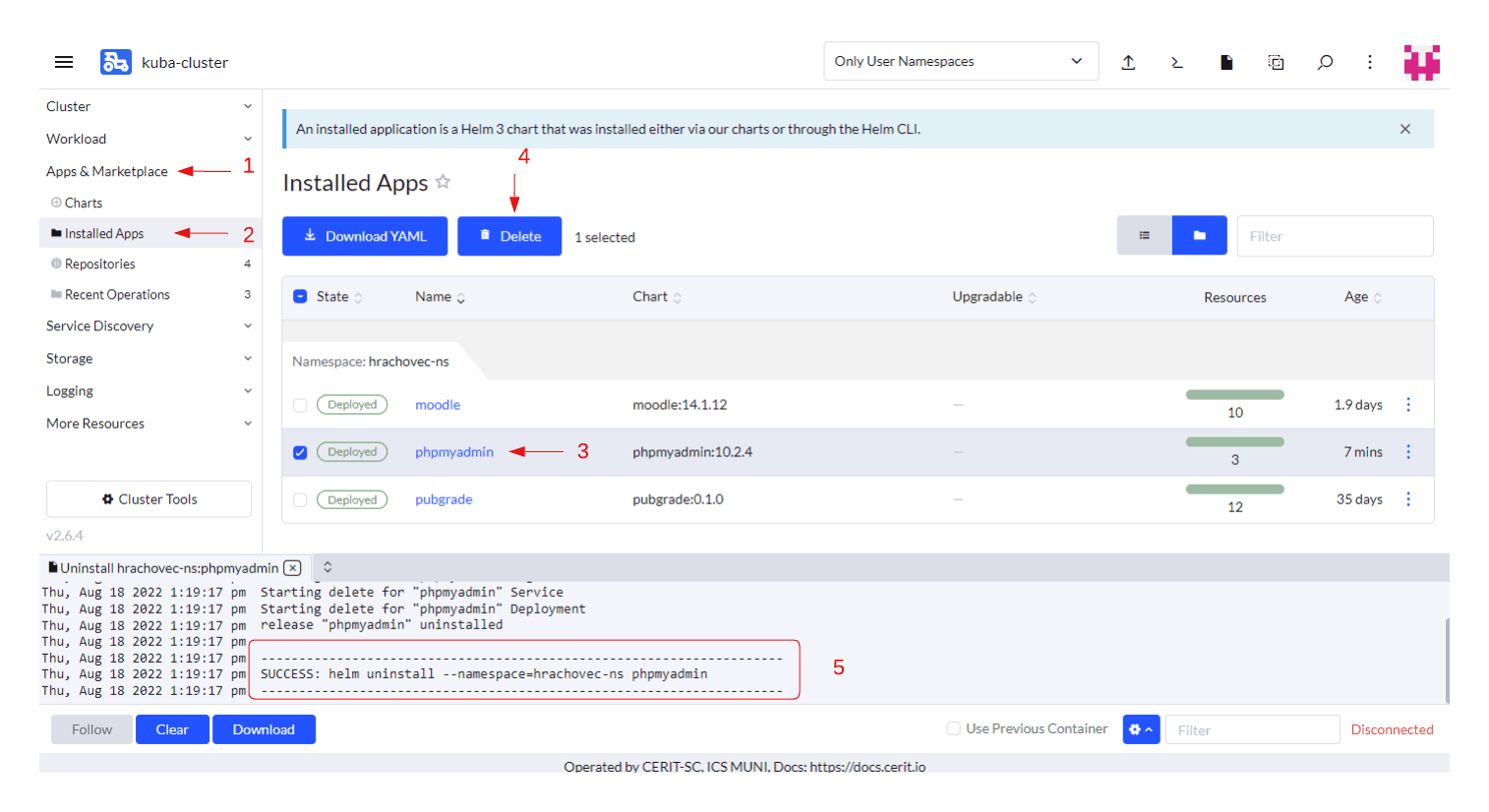
In case you want to uninstall the application, go to App & Marketplace, Installed Apps, select your instance and click Delete and wait for the message you see on the screen.