Documentation
Chat AI (LLM models)
Access CERIT-SC Chat AI, choose a model, and use language models for writing, coding, and working with research documents.
Introduction
Chat AI provides a browser interface to AI models hosted by CERIT-SC within e-INFRA CZ. The interface, called Open WebUI, lets you work with text, code, and documents without installing software locally.
You can use it to revise scientific writing, explore programming questions, extract information, and discuss research material. Some models also support images or tools for calculations.
This guide explains how to get access, choose a model, and use the main features. For scripts and automated workflows, see the OpenAI-compatible API guide.
Accessing Open WebUI
How to Get Access
Choose the registration route that applies to you.
| Your situation | How to get access |
|---|---|
| You have an active MetaCentrum account | Continue to Logging in. |
| You need a MetaCentrum account | Complete the MetaCentrum registration form |
| You are a Masaryk University student or staff member without a MetaCentrum account and you need to acces only AI chat and API | Use the Masaryk University fast-track registration. |
⚠️ Note: The Masaryk University fast-track registration provides access to AI chat and API services, with automatic approval. It does not provide full access to the Kubernetes platform; that requires a MetaCentrum account.
If you cannot register or sign in, contact k8s@cerit-sc.cz.
Data privacy
Before uploading research material, consider its sensitivity and your project’s data-handling requirements.
The standard hosted models run within e-INFRA CZ. However, external search tools and separately arranged third-party services may send information outside this infrastructure.
The chat interface stores conversations and uploaded files. The AI data privacy policy describes storage, logging, retention, and deletion limitations.
The chat interface is intended for general research assistance and is not certified for protected data. Before submitting sensitive, personal, classified, or otherwise restricted information, contact k8s@cerit-sc.cz to discuss a suitable setup.
Direct API access bypasses the chat interface’s conversation storage. This does not, by itself, establish that a workflow meets your data-protection requirements.
Logging in
- Open Chat AI.
- Select Login.
- Choose e-INFRA CZ and complete authentication.
- Once signed in, open a chat.
Using AI Models
Start your first conversation
- Select a model from the menu at the top of the chat. Scroll through the menu to see additional models.
- Describe your task and provide the context needed to answer it.
- Specify the desired output, such as a paragraph, table, or code example.
- Send your message.
- Review the response and ask follow-up questions where needed.

Choose a model for your task
| Task | What to look for |
|---|---|
| Revising text, summarising, or extracting information | A general-purpose text model |
| Explaining or debugging code | A model suited to coding |
| Working through a complex problem | A reasoning model, followed by independent verification |
| Reading an image or scanned page | A multimodal model with image support |
| Running a calculation through an enabled tool | A model that supports tool use |
| Building semantic search in an application | An embedding model accessed through the API |
Start with a model that meets your needs on a small, representative sample. A larger or slower model does not necessarily produce better results for every task.
Image understanding and image generation are separate capabilities. To create or edit an image, use the image tool described in Examples.
Currently available models
Check the live status page for current availability. The tables below describe the documented model inventory; deployments and settings may change.
For exact, currently served model names, query the live model list via the API (see Creating an API Key) or check the status page. When accessing externally you must use either a maintained alias or the exact model name, e.g. qwen3.8-27b or deepseek-v4.1-flash.
Model names are case-sensitive and may include a quantization suffix.
For programmatic access, use a maintained model alias or an exact model identifier returned by the API. Model identifiers are case-sensitive.
Generative models
In the table below:
- Context is the documented context-window size, expressed in tokens.
- Max output is the documented output-token limit.
- Quant. describes the numerical representation used for model weights.
- — means that no value is listed here.
These limits describe capacity, not guaranteed response length, accuracy, or processing speed. Effective limits can also depend on service configuration.
| Model | API name | Capabilities | Context | Max output | Quant. | Source |
|---|---|---|---|---|---|---|
| GPT-OSS-120B | gpt-oss-120b | Chat, tools | 128k | 32k | mxfp4 | Model card |
| DeepSeek V4.1 Flash-1017 | deepseek-v4.1-flash | Chat, tools | 1M | 64k | fp8 | Model card |
| GLM 5.3 | glm-5.3 | Chat, tools | 1M | 64k | fp8 | Model card |
| GLM 5.3 Flash | glm-5.3-flash | Chat, multimodal, tools | 1M | — | nvfp4 | Model card |
| Kimi K3 | kimi-k3 | Chat, multimodal, tools | 1M | 48k | mxfp4 | Model card |
| Qwen3.8 Flash Next | qwen3.8-flash-next | Chat, multimodal, tools | 256k | 48k | fp8 | Model card |
| Qwen3.8 27B | qwen3.8-27b | Chat, multimodal, tools | 256k | 32k | fp8 | Model card |
| Mistral Medium 3.5 | mistral-medium-3.5 | Chat, multimodal, tools | 256k | — | fp8 | Model card |
| Gemma 4 | gemma4 | Chat, multimodal, tools | 256k | 32k | bf16 | Model card |
- Kimi K3 — Moonshot AI’s open-weight 2.8T-parameter Mixture-of-Experts (MoE) flagship model. Native multimodal with vision support, a 1M-token context window, and strong performance in long-horizon coding, reasoning, knowledge work, and agentic workflows.
- GLM 5.3 — 756B-parameter language model optimized for advanced reasoning, tool use, and multi-step agentic tasks.
- GLM 5.3 Flash — 320B-parameter (18B active) Mixture-of-Experts multimodal model from ZAI for reasoning, coding, and agentic tasks. The NVIDIA NVFP4 build reduces weight memory by about 3.3 times compared with BF16 and keeps benchmark accuracy close to the BF16 baseline.
- GPT-OSS-120B — OpenAI’s 120B-parameter open-weight language model offering strong general-purpose performance across reasoning, coding, and tool use.
- DeepSeek V4.1 Flash-1017 — efficient reasoning model with a small activated parameter count relative to leading proprietary models. Excels at mathematics, logical reasoning, and code generation.
- Qwen3.8 Flash Next — 180B (MoE) multimodal model with improved coding performance. fp8 quantization, 256k context, and a maximum output of 48k tokens.
- Qwen3.8 27B — 27B (dense) multimodal model with significantly improved coding performance. Supports images and videos, with configurable thinking for balancing speed and reasoning.
- Mistral Medium 3.5 — 128B multimodal model for text, coding, tool use, and agentic workflows.
- Gemma 4 — Google’s 31B multimodal model; useful for OCR/vision and general-purpose tasks.
- Whisper Large v3 — OpenAI’s 1.55B automatic speech recognition (ASR) and speech-translation model; supports 99+ languages with robust transcription even in noisy conditions. Available via API only. See its model card for background information. It is not a text-chat model.
Model aliases
An alias is a maintained name that points to a deployed model. Its target can change when the service is updated.
Aliases reduce the need to change model names in scripts, but they do not guarantee identical behaviour, outputs, or uninterrupted access.
| Alias | Documented target | Notes |
|---|---|---|
glm | glm-5.3 | Maintained GLM alias |
glm-5 | glm-5.3 | Legacy alias; use glm for new configurations |
kimi | kimi-k3 | Maintained Kimi alias |
deepseek | deepseek-v4.1-flash | Reasoning disabled by default |
deepseek-thinking | deepseek-v4.1-flash-thinking | Reasoning enabled |
thinker | deepseek-v4.1-flash-thinking | Reasoning alias |
mini | gpt-oss-120b | General-purpose alias |
coder, agentic | qwen3.8-flash-next | Coding and agent-workflow aliases |
The documented deepseek and deepseek-thinking targets use the
same underlying model weights with different reasoning defaults.
Use an exact model identifier when you need to record which version was used. An exact identifier does not reserve that version or guarantee its future availability.
Embedding models
Embedding models represent text as numerical vectors for semantic search and document retrieval. Rerankers perform a different task: they reorder candidate results according to their relevance to a query.
These services are accessed programmatically. See the API guide for access and supported requests.
| Model identifier | Type | Documented input limit | Embedding dimensions |
|---|---|---|---|
qwen3-embedding-4b | Embedding | 40,960 tokens | 2,560 |
qwen3-reranker-4b | Reranker | 40,960 tokens | Not applicable |
nomic-embed-text-v1.5 | Embedding | 512 tokens | 768 |
nomic-embed-text-v2-moe | Embedding | 512 tokens | 768 |
mxbai-embed-large:latest | Embedding | 512 tokens | 1,024 |
multilingual-e5-large-instruct | Embedding | 514 tokens | 1,024 |
Check the deployed configuration before designing a document-processing pipeline. Input limits, supported languages, and preprocessing requirements should be evaluated for your dataset.
Programming languages proficiency
The following results are reported from evaluations using the Aider Polyglot Benchmark.
Use them as supporting information when choosing a model. Performance on benchmark exercises does not establish correctness for your software or research workflow.
| Model | C++ | Go | Java | JavaScript | Python | Rust |
|---|---|---|---|---|---|---|
| DeepSeek V4.1 Flash-1017 | 88.5 | 87.2 | 72.3 | 93.9 | 91.2 | 96.7 |
| Gemma 4 (instant) | 53.8 | 51.3 | 34.0 | 44.9 | 44.1 | 46.7 |
| GLM 5.3 | 88.5 | 87.2 | 87.2 | 93.9 | 100.0 | 86.7 |
| GLM 5.3 Flash (NVFP4) | 92.3 | 92.3 | 83.0 | 91.8 | 91.2 | 66.7 |
| GPT-OSS-120B | 50.0 | 59.0 | 40.4 | 61.2 | 70.6 | 53.3 |
| Kimi K3 (think) | 100.0 | 92.3 | 93.6 | 91.8 | 97.1 | 93.3 |
| Mistral Medium 3.5 (high) | 50.0 | 59.0 | 44.7 | 57.1 | 67.6 | 46.7 |
| Qwen 3.8 27B (xhigh) | 80.8 | 76.9 | 70.2 | 85.7 | 85.3 | 83.3 |
| Qwen 3.8 Flash Next | 76.9 | 84.6 | 78.7 | 87.8 | 91.2 | 90.0 |
How models are added, upgraded, and removed
CERIT-SC evaluates new models using benchmarks, community feedback, and their suitability for the available computing resources.
Because GPU capacity is shared and limited, model versions may be replaced or retired. Maintenance or urgent infrastructure requirements can also temporarily affect availability.
Changes are announced through the documentation and chat-interface notices. Check the live status page when planning a substantial workload.
No specific model version is guaranteed to stay available. Because we run on limited, shared GPU hardware, we replace models with better ones as soon as they are available — usually at night, but possibly at any time — and retire the old exact model name. The hardware may also occasionally need maintenance (we have no backup of comparable scale) or be temporarily diverted to urgent high-priority tasks, during which availability can be suspended. We announce such changes on this page and via WebUI banners.
For reproducible work (e.g. a bachelor’s or master’s / diploma thesis): plan for a replacement happening right before a deadline or defense. We do not guarantee that a specific model will remain available throughout the semester.
- Call models through a maintained alias so your code keeps running even after the underlying model is upgraded.
- An alias keeps your code working, not your outputs — a newer model may answer differently, so do not assume results stay reproducible over time.
- Keep local copies of important results, and if exact reproducibility is critical, contact us at k8s@cerit-sc.cz to discuss options.
Preserve your research results
A model may change during a thesis, publication, or other research project. For work that needs to be traceable:
- Record the exact model identifier and available metadata.
- Save prompts, relevant inputs, generation settings, and dates.
- Keep copies of outputs in accordance with your data-management plan.
- Re-evaluate your workflow after a model change.
Even with the same model, repeated requests may produce different outputs.
Examples
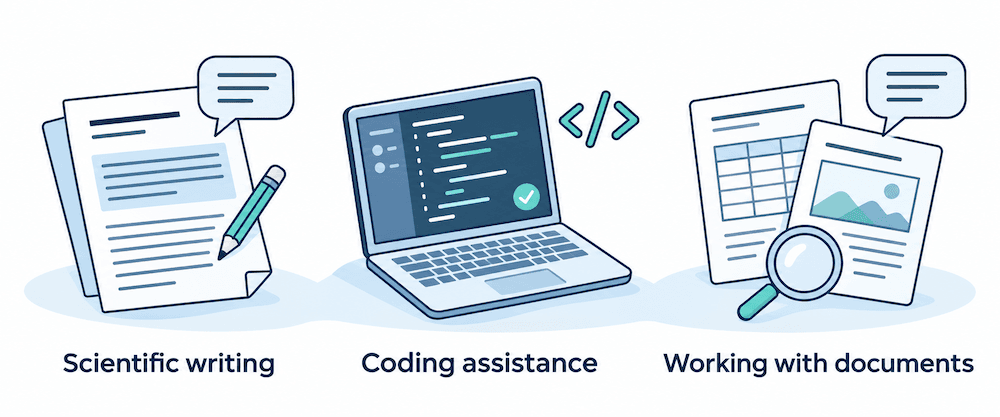
The examples below describe the documented interface. Available controls depend on the selected model and enabled tools.
Revise scientific writing
Provide the passage and specify what may change.
Revise this abstract for clarity and concision. Preserve the scientific meaning, numerical results, citations, and uncertainty.
Do not introduce new claims. Return the revised abstract followed by any ambiguities that need my attention.
Compare the revision with the original, particularly where it describes results, limitations, or causal relationships.
Explain or debug code
Include the relevant code, the expected behaviour, and any error message. Remove credentials and other confidential information.
Explain why this Python function fails for an empty input. Suggest the smallest correction and provide examples covering
an empty input, one value, and multiple values.
Review and test generated code before using it in an analysis.
Image-to-text (OCR scanner)
Use a model with image support to extract text from a scanned page or photograph.
- Select a multimodal model.
- Select + → Upload Files and upload the image.
- Describe the extraction task.
- Send the request and compare the output with the source.
Example:
Transcribe the text in this image. Preserve headings, line breaks, numerical values, and units.
Mark unreadable text as [unclear] instead of guessing.
Check mathematical symbols, decimal separators, subscripts, and table alignment carefully.
For a scanned PDF, check whether direct upload works with your selected model and tool configuration. Individual page images can be used when necessary.
Image generation
Use the image tool to create illustrations for teaching, communication, or early design work.
- Select a chat model.
- Open the Integration control and enable Image.
- Describe the image you want.
- Send the request.
- Refine the result with follow-up instructions.

Example:
Create a simple illustration of a researcher using a notebook, a computing cluster, and a document collection.
Use a white background, blue accents, and no text.
Generated illustrations should not be presented as experimental observations. Use plotting or diagramming software when values, geometry, or scientific relationships must be exact.
Picture editor
- Select a model with image support.
- Select + → Upload Files and upload an image.
- Open Integration and enable Image.
- Specify the changes and what should remain unchanged.
- Send the request and inspect the result.
Example:
Change the background of this conceptual illustration to white.
Preserve the objects, their positions, and their colours.
Keep the original file. Inspect details that the tool may have changed unintentionally.
Python sandbox for math/code tasks
The Python sandbox supports specific calculations and data transformations with text output. It is not a general-purpose programming environment.
- Select a model that supports tools.
- Open Integration → Tools.
- Enable Python Sandbox.
- Describe the calculation and provide the required data.
- Inspect the calculation and its output.

Example:
Calculate the mean and sample standard deviation of these measurements: 2.1, 2.4, 2.2, 2.6, and 2.3.
Show the Python code and state which standard-deviation convention you used.
The documented sandbox returns text and does not render plots. For plotting or a reproducible analysis environment, use JupyterHub or your own Python or R setup.
Memorize (personalization)
Memory can retain preferences for later conversations, where supported. For example, you might store that you prefer Python examples or British English.
- Open your user menu.
- Go to Settings → Personalization → Memory.
- Enable memory if it is available.
- Use Manage to review and edit stored preferences.

Memory support depends on the configured model and interface. Check that a preference has been saved rather than relying only on the model’s acknowledgement.
Do not store passwords, API keys, or other credentials in memory. For reproducible work, include important instructions explicitly in the prompt rather than relying on personalisation.
Knowledge function (alpha)
The experimental Knowledge function lets you query a collection of uploaded documents using retrieval-augmented generation (RAG).
RAG retrieves relevant passages and supplies them as context to a model. Uploading documents does not mean that the model has been trained on them.
The Knowledge function is intended for testing and preview. It is not currently recommended for production workflows.
The documented setup uses a shared embedding-model configuration. Changing that model can require documents to be processed again.
Retrieval quality depends on the language, document structure, text extraction, and how documents are split into passages. Test representative material before relying on the results.
Check answers against the original passages. Retrieved text and citations do not guarantee that the model’s interpretation is correct.
Before uploading a document collection, review the data privacy policy, including file-retention and deletion limitations.
Creating an API key
An API key lets your scripts and applications authenticate to the AI service.
- Open Settings in Chat AI.
- Select Account.
- Open API keys.
- Generate a key or display an existing one. Use the API key rather than the separately displayed JWT token.
- Store the key securely and configure your application to use it.
The documented API base URL is:
https://llm.ai.e-infra.cz/v1/Do not share API keys or include them in notebooks, source repositories, screenshots, or chat messages. Use an environment variable or a suitable secret-management mechanism.
For requests, supported features, and client configuration, follow the API guide.
Monitor API usage
The usage dashboard shows token consumption through the API after you sign in with your e-INFRA CZ account.
It does not include token consumption through the chat interface.
A practical guide to using AI chat
A useful prompt usually contains four elements:
- Task: what you want the model to do.
- Context: the material and background needed for the task.
- Constraints: what to preserve, exclude, or treat as uncertain.
- Output: the required format and level of detail.
For example:
Using only the supplied methods section, extract the sample size,
instruments, experimental conditions, and statistical tests.
Return a table with one row per item and a supporting quotation.
Write “not stated” when the section does not provide the information.
Review the response before refining the prompt. If something is missing or incorrect, identify it directly and explain the correction you need.
Clear instructions can improve usefulness, but they do not guarantee accuracy. Verify references, calculations, extracted values, and scientific claims against appropriate sources.
Shared resources and benchmarking
The platform is shared across the research community. Response times vary with model choice, request length, and current demand.
For automated work, limit concurrent requests and evaluate your workflow on a small sample before processing a large dataset.
Independent benchmarks require prior consultation. Contact k8s@cerit-sc.cz before running them. Because our LLM infrastructure is shared by many users simultaneously, running independent benchmarks during peak times creates bottlenecks and yields inaccurate data:
- Requests accumulate in a shared queue, meaning your performance metrics will reflect server wait times rather than actual model processing speed.
- Heavy testing restricts vital resources for peers relying on these models for active research.
Measurements on a shared service include queueing and other operational effects. Record workload conditions when interpreting performance results.
Help and troubleshooting
| Problem | What to check |
|---|---|
| You cannot sign in | Confirm that registration is complete and that you are using the correct institutional identity. |
| A model is missing | Check the model menu and status page; the model may have changed or been retired. |
| A tool is unavailable | Check that the selected model supports it and that the tool is enabled. |
| Image processing fails | Check model image support and the uploaded file format. |
| Responses are slow | Check service status and try a shorter request or another suitable model. |
| An answer is unsupported or incorrect | Inspect the source material, clarify the task, and verify the result independently. |
For assistance, contact k8s@cerit-sc.cz. Include the approximate time, model name, and a description of the problem. Remove sensitive content and credentials from examples and screenshots.
For community discussion and announcements, see the Matrix communication platform.
Last updated on