 Documentation
Requesting a Project, Access Control
In Kubernetes cluster we differentiate between 2 types of projects:
- individual project
- group project
Everybody who signs into the Rancher instance is assigned his/her default individual project (more information here) with default quotas described here.
To access projects in Rancher, you must be a valid member of MetaCentrum. If you are not a member of MetaCentrum, registration form is available here.
Requesting Group Project
We are preparing a convenient request form, it will be available at this page when ready. In the meantime, if you need a group project, you have to contact us at k8s@cerit-sc.cz. By default, group project is assigned (and so its namespace) 12 CPU request 64 CPU limit and 40GB RAM request 256GB RAM limit.
Use Existing Group for Access Control
If you already have a group in perun.e-infra.cz, please include the group’s VO in the email. If the group is in VO e-infra.cz, include the group’s ID as well.
Other required information:
- name of the new project
- desired resource quota (not necessary if the default is enough)
- the person responsible for the project (name + organization + UCO (if from MU) or metacentrum login)
No Group Yet for Access Control
If you don’t have a group, we will create it for you. Please include information “create a new group for a Rancher project”.
Other required information:
- name of the new project
- desired resource quota (not necessary if the default is enough)
- the person responsible for the project (name + organization + UCO (if from MU) or metacentrum login)
Access Control
We need the name of responsible person for project access control. It is up to you (or selected person from your group) to manage people allowed to access the project. Even if you know name of the existing group you would like to use from Perun, you have to assign it yourself. Once the Perun resource is prepared, a responsible person is assigned an administrator role on this resource which means the person can add other people as administrators, assign allowed groups on the resource or add members.
The most widespread way of access control is assigning a group containing several members on Perun resource. Below we provide a tutorial on how an administrator (a person you chose to be an administrator in the email) can assign such group.
- Log into CESNET Perun.
- Scroll on the home page until you see table
Manager in Resources.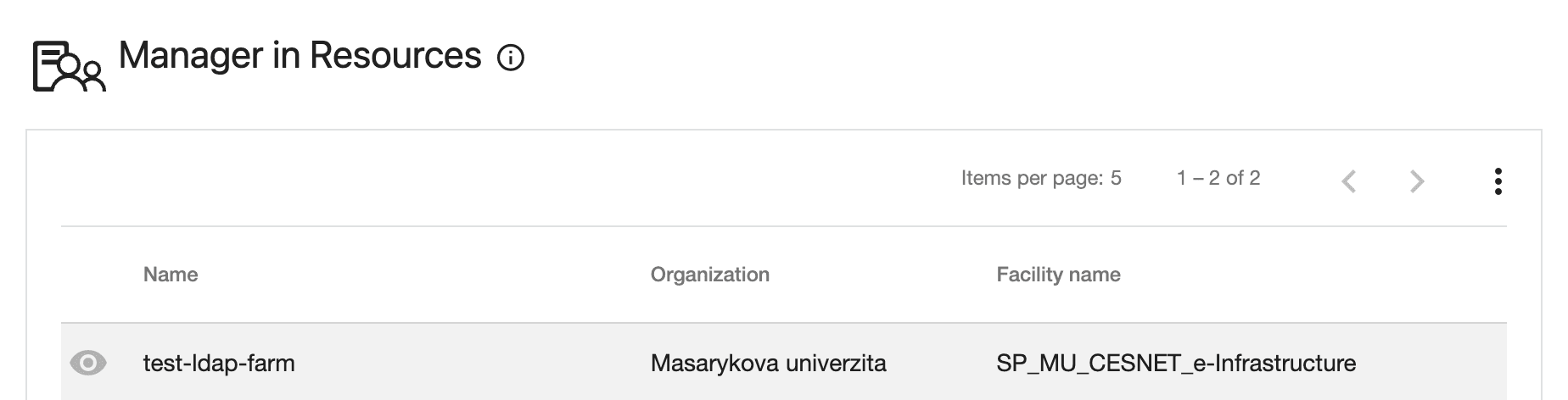
- Click on the resource with same name as the requested project name.
- Click on
Assigned Groups.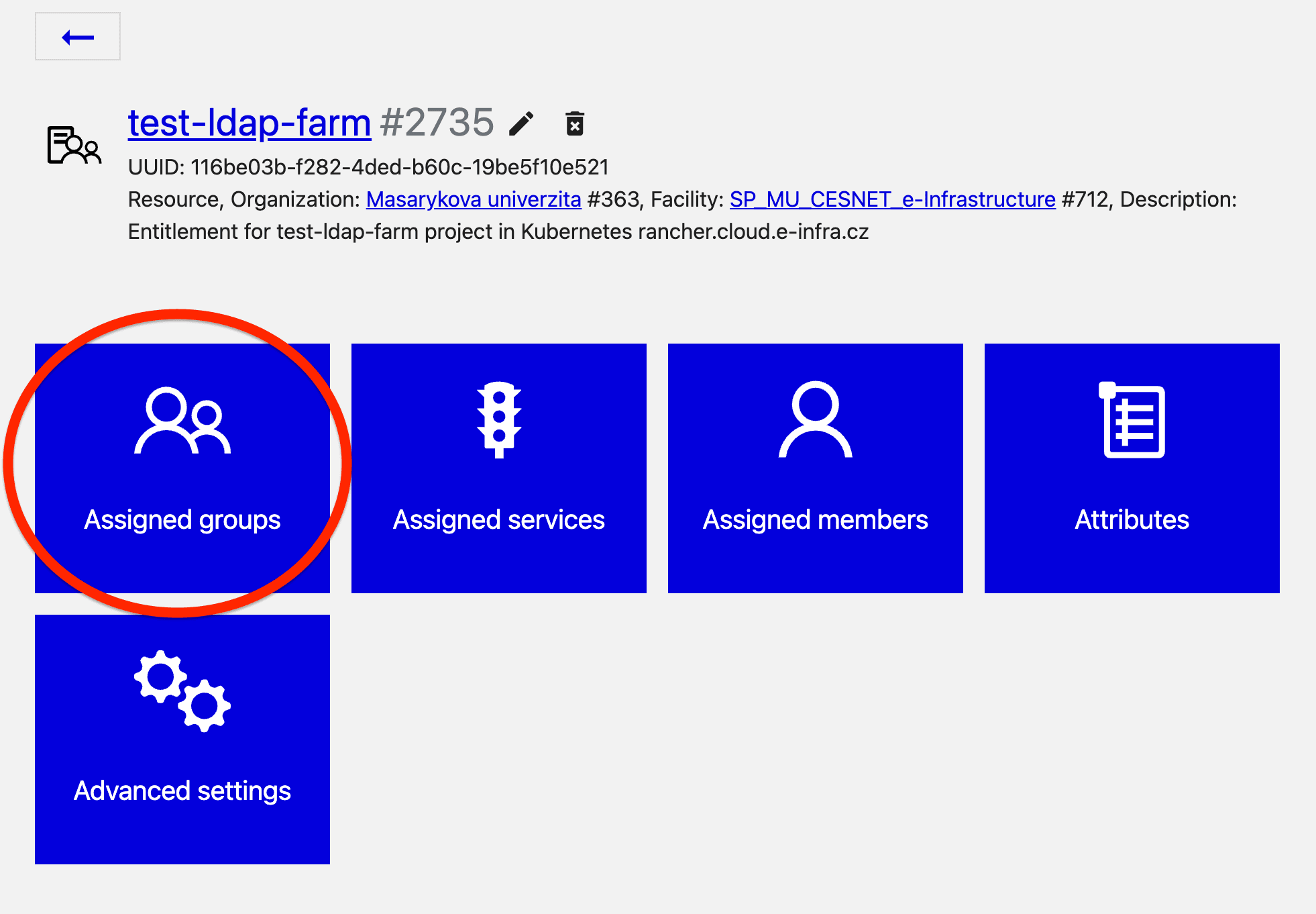
- Click on
Assign Groups, write groupname into the search bar and select desired group.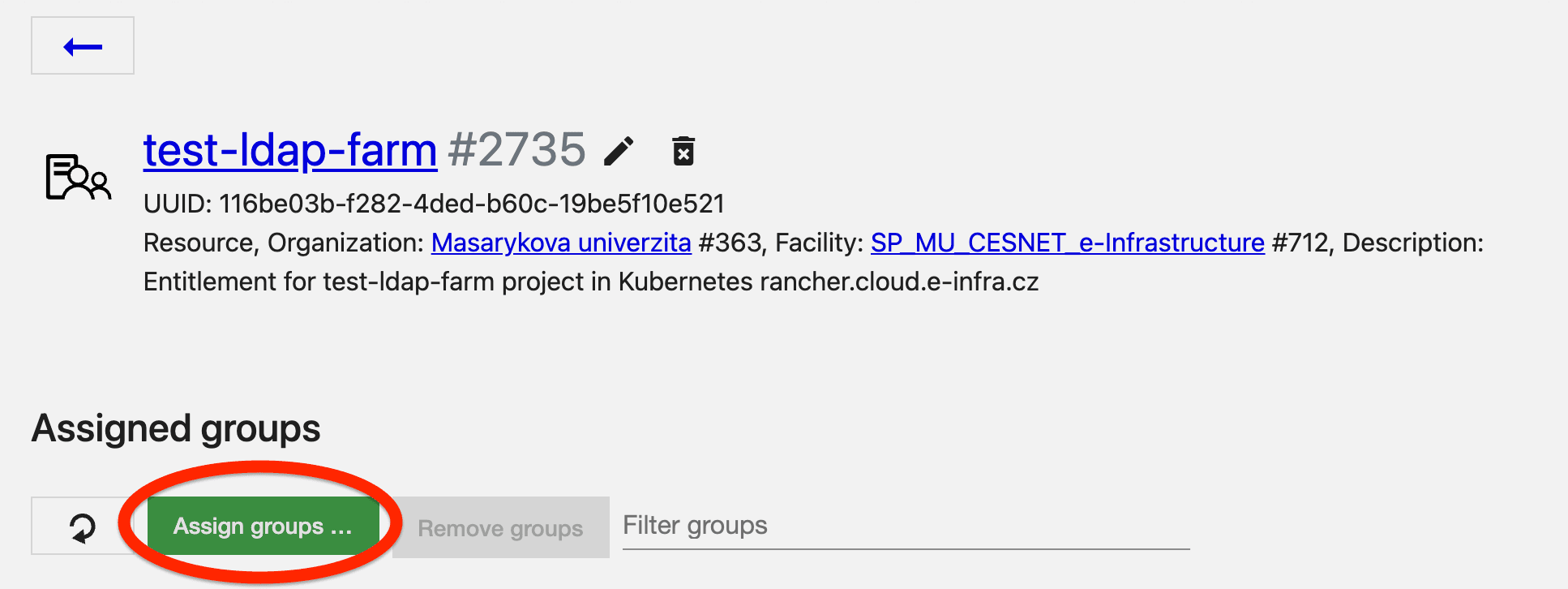
- Click
Next, leave all options as they are and clickAssign group. - It takes 5-10 minutes to propagate the change so you have to wait for a bit. After 10 minutes, the change should be propagated so you can log out and back into Rancher or just refresh the page. You (and all group members) should now see the project.
Requesting Larger Individual Project
We are preparing a convenient request form, it will be available at this page when ready. In the meantime, if you need a larger project for your own use, you have to contat us at k8s@cerit-sc.cz.
In your email, please include following information:
- name of the new project
- desired resource quota